Watch Folders
Automatically import files from designated folders. Set up watch folders to capture screenshots, downloads, or any files as they appear.
Overview
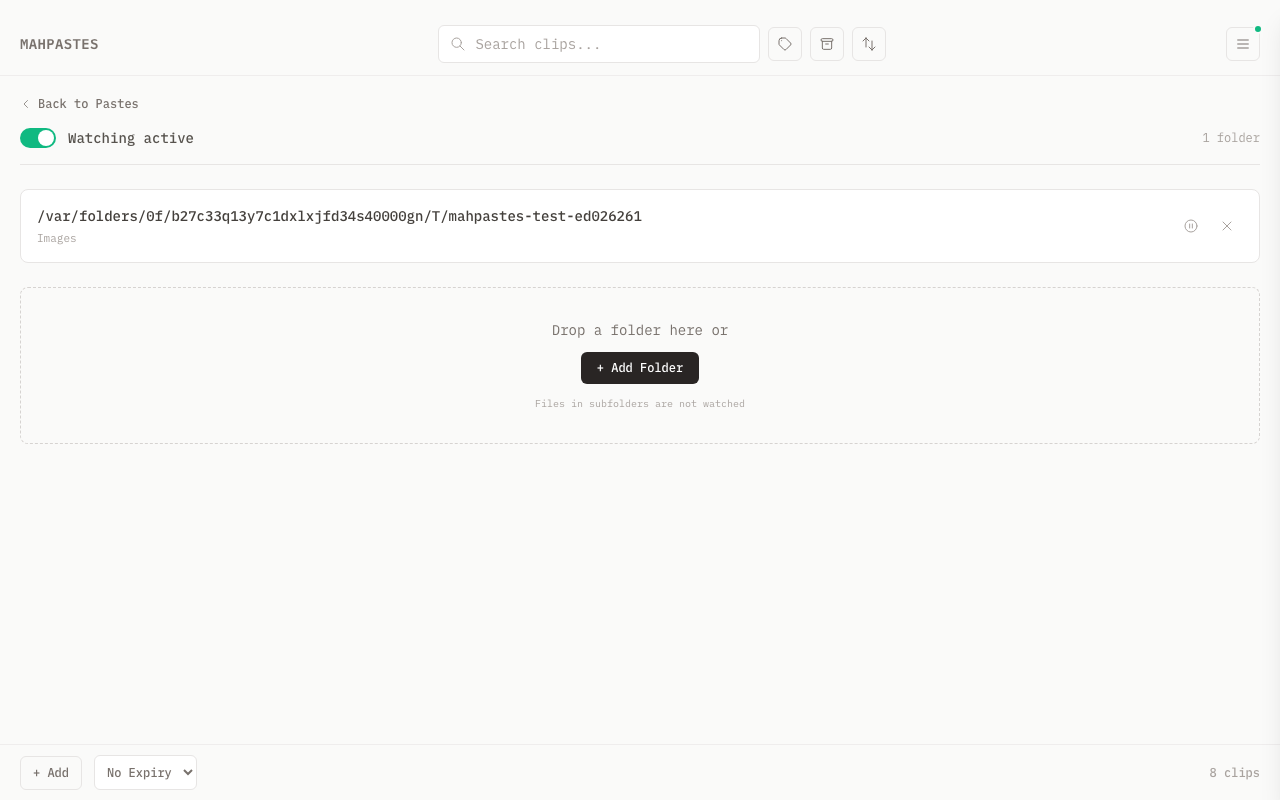
Watch folders monitor directories on your system:
- New files are automatically imported as clips
- Configure filters to import only specific file types
- Optionally auto-archive imported files
- Pause watching per-folder or globally
Setting Up a Watch Folder
- Open the menu drawer and click Watch
- Click Add Folder
- Select a folder using the file picker
- Configure filter and options
- Click Save
mahpastes immediately starts watching the folder.
Configuration Options
Filter Mode
Control which files are imported:
| Mode | Description |
|---|---|
| All Files | Import every file (default) |
| Presets | Import files matching preset categories |
| Custom Regex | Import files matching a regex pattern |
Presets
When using preset mode, select one or more categories:
| Preset | File Extensions |
|---|---|
| Images | jpg, jpeg, png, gif, webp, heic, bmp, tiff, svg |
| Documents | pdf, doc, docx, txt, md, rtf, odt, xls, xlsx |
| Videos | mp4, mov, avi, mkv, webm, m4v, wmv |
Multiple presets can be selected (e.g., Images + Documents).
Custom Regex
For precise control, use a regular expression:
# Only PNG files
\.png$

# PNG and JPG
\.(png|jpe?g)$

# Files starting with "screenshot"
^screenshot.*

# Any image file
\.(png|jpe?g|gif|webp)$
The regex matches against the filename (not the full path).
Auto-Archive
Enable to automatically move imported files to archive:
- Keeps main gallery clean
- Good for background collection
- Find imports in Archive view
Auto-Tag
Automatically apply a tag to all imported files:
- Select a tag from the Auto-tag dropdown
- Every file imported from this folder gets that tag
- Select "None" to disable
Process Existing Files
When adding a new watch folder:
- Enabled: Import all existing files in the folder immediately. Source files are removed after import, the same as with live watching.
- Disabled: Only import new files going forward
Managing Watch Folders
Pause/Resume
Per-Folder
- Open Watch view (menu drawer → Watch)
- Toggle the pause button for a specific folder
- Paused folders stop importing (but remain configured)
Global Pause
- Click the global pause button
- All watching stops
- Click again to resume all
Edit Configuration
- Open Watch view (menu drawer → Watch)
- Click the folder card you want to edit
- Modify filter or options
- Save changes
Remove
- Open Watch view (menu drawer → Watch)
- Click the delete button on a folder
- Confirm removal
The folder is no longer watched. Existing imported clips remain.
Watch Status
The status indicator shows:
- Active: Number of folders actively watching
- Paused: Folders or global watching is paused
- Errors: Issues with specific folders
Folder Status Indicators
| Indicator | Meaning |
|---|---|
| Full opacity card | Actively watching |
| Dimmed card (50% opacity) + Paused text label | Paused |
| Folder not found amber badge | Watched folder no longer exists on disk |
Use Cases
Screenshots Folder
Automatically capture all screenshots:
Folder: ~/Desktop or ~/Screenshots
Filter: Images preset
Auto-archive: Optional
Every screenshot you take appears in mahpastes.
Downloads Monitoring
Import specific download types:
Folder: ~/Downloads
Filter: Custom regex \.pdf$
Auto-archive: Yes
PDFs are imported and archived automatically.
Design Assets
Collect exported design files:
Folder: ~/Design/Exports
Filter: Images preset
Auto-archive: No
Design exports appear in main gallery for quick access.
Recording Outputs
Capture screen recordings:
Folder: ~/Movies
Filter: Videos preset
Auto-archive: Yes
Videos are imported and archived for later review.
Technical Details
How It Works
- mahpastes uses filesystem events (fsnotify) to monitor each folder
- Only file Create and Write events trigger imports -- other events (rename, chmod, remove) are ignored
- Hidden files (filenames starting with
.) are automatically skipped - Events are debounced (500ms) to let files finish writing before import
- The file is read and stored as a clip
- If auto-archive or auto-tag is configured, those are applied to the new clip
- The original file is deleted from the watched folder after successful import
Imported files are automatically removed from the watched folder after they are successfully stored in mahpastes. The file is only deleted once the database commit is confirmed. This prevents duplicate imports and keeps the watched folder clean.
Debouncing
Files are imported after 500ms of stability:
- Prevents importing partially-written files
- Waits for large files to finish writing
- Handles rapid file creation gracefully
Plugin Events
Watch folders emit two plugin events during the import lifecycle:
watch:file_detected-- fires before the file is imported, with the file path and folder IDwatch:import_complete-- fires after the clip is stored (and auto-archived/auto-tagged if applicable), with the new clip ID, source path, and folder ID
Plugins that subscribe to these events in their manifest can react to watch folder imports, for example to run image processing or apply additional tags.
Error Handling
If a file can't be imported:
- An error notification is shown
- Other files continue to be processed
- Check file permissions and format
Tips
Best Folder Choices
Good watch folders:
- Screenshot destinations
- Download folders (with filters)
- Export directories
- Drop zones you create
Avoid watching:
- System folders
- Very active directories (hundreds of files)
- Network drives (may be slow or unreliable)
Filter Strategy
- Start with presets for common use cases
- Use regex for precise matching
- Test regex on a few files first
- Combine with auto-archive for background collection
Performance
- Watch folders add minimal overhead
- Many watched folders are fine
- Very large folders may slow initial scan (if processing existing)
- Binary files are stored as-is (no processing)
Troubleshooting
Folder Not Watching
- Check folder still exists
- Verify it's not paused
- Check global pause is off
- Restart mahpastes if needed
Files Not Importing
- Check filter settings
- Test filter regex against filename
- Verify file permissions
- Check for error notifications
High Resource Usage
- Reduce number of watched folders
- Use more specific filters
- Disable "process existing" for large folders
- Avoid watching very active directories
REST API & CLI
You can manage watch folders programmatically through the REST API or the mp CLI:
# List watch folders
mp watch list

# Add a new watch folder
mp watch add ~/Screenshots --filter-mode presets --presets images

# Pause a folder
mp watch pause <id>

# Process existing files in a folder
mp watch process <id>
See the REST API reference for the full set of watch folder endpoints.