Backup & Restore
Back up your mahpastes data and restore it on any machine. Backups include all clips, tags, plugins, and watch folder configurations.
Overview
The backup system creates a portable ZIP file containing:
- All clips (images, text, files)
- Tags and clip-tag associations
- Installed plugins, their storage, and permissions
- Watch folder configurations
- The
settingstable (watch folder pause state), with sensitive rows filtered out
Creating a Backup
- Open the menu drawer and click Settings
- Find the Backup & Restore section
- Click Create Backup
- Choose a location and filename
- Wait for the backup to complete
The backup file is a standard ZIP with a .zip extension.
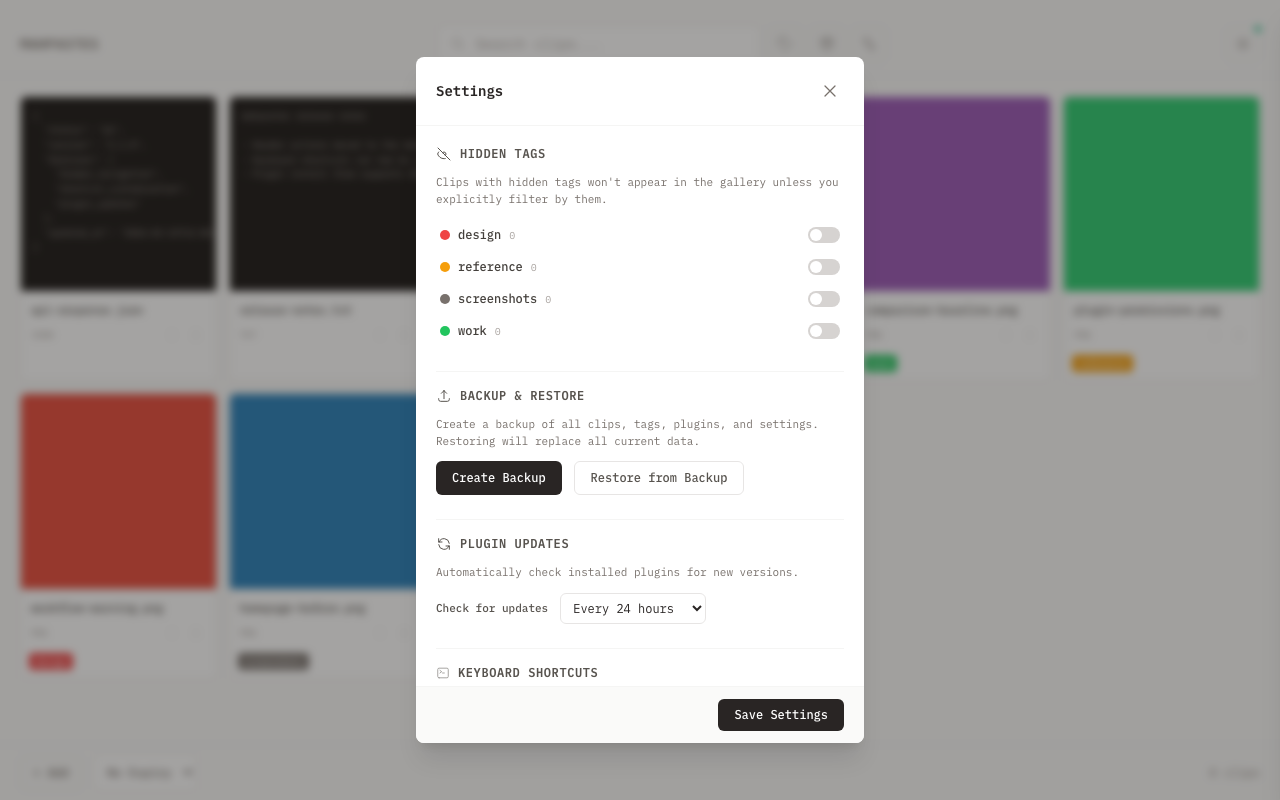
Restoring from Backup
Restoring replaces ALL current data. This cannot be undone.
- Open the menu drawer and click Settings
- Find the Backup & Restore section
- Click Restore from Backup
- Select your backup file
- Review the backup summary (clips, tags, plugins)
- Click Delete & Restore to confirm
After restore:
- All clips and tags are restored
- Plugins are restored but permissions require re-confirmation
- Watch folders are restored but paused (re-enable manually)
- App preferences (
app_settings) and API keys are not part of the backup and remain unchanged on the target machine
What's Included
Included in Backup
| Data | Notes |
|---|---|
| Clips | Full content (images, text, files) with metadata |
| Tags | Names, colors, clip-tag associations |
| Plugins | Lua source files, plugin storage, and permissions (permissions are marked for re-confirmation on restore) |
| Watch folders | Paths, filter configurations, auto-archive/auto-tag settings (all folders are paused on restore) |
| Settings | The settings table (stores watch folder pause state). Rows matching sensitive patterns are excluded -- see below. |
The database has two separate settings tables: settings (stores watch folder pause state) and app_settings (stores app preferences like plugin update interval). Only settings is included in backups. app_settings and api_keys are not included in backups -- these remain untouched on the target machine during restore.
Excluded from Backup
| Data | Reason |
|---|---|
app_settings table | App preferences are not part of the backup scope |
api_keys table | API keys are not part of the backup scope (re-create after restore) |
clip_metadata table | Not exported -- metadata key-value pairs are lost on restore |
Sensitive settings rows | Any row in the settings table whose key contains api_key, secret, password, or token is filtered out |
| Temporary files | Regenerated as needed |
Backup File Format
The backup is a ZIP file containing:
backup.zip
├── manifest.json      # Backup metadata
├── database.sql       # SQL dump of all data
└── plugins/           # Plugin Lua files
    ├── my-plugin.lua
    └── another-plugin.lua
Manifest
The manifest.json contains:
- Format version (for compatibility)
- App version that created the backup
- Creation timestamp
- Platform (the OS that created the backup)
- Summary (clip count, tag count, plugin count, watch folder count)
- List of excluded sensitive setting keys
Version Compatibility
Forward Compatibility
Backups can be restored to newer versions of mahpastes:
- New features won't have data (expected)
- Core data (clips, tags) always restores
- Plugin APIs may change between versions
Backward Compatibility
Restoring to older versions:
- Works for basic data (clips, tags)
- New features' data is ignored
- May show warnings for unknown data
Tips
- Keep backups from major versions
- Test restore on a fresh install if switching versions
- Check release notes for breaking changes
Use Cases
Moving to a New Computer
- Create backup on old machine
- Transfer ZIP file (USB, cloud, etc.)
- Install mahpastes on new machine
- Restore from backup
Regular Backups
Set up a routine:
- Weekly or monthly backups
- Store in cloud storage or external drive
- Keep multiple versions (e.g., last 3 backups)
Before Major Changes
Create a backup before:
- Upgrading mahpastes
- Bulk operations
- Plugin experiments
- System updates
Sharing Clip Collections
Share curated clips with others:
- Create clips you want to share
- Create backup
- Share the ZIP file
- Recipient restores to their mahpastes
This replaces all their data. For partial sharing, use bulk export instead.
Security Considerations
Sensitive Data
The api_keys and app_settings tables are not part of the backup scope at all. Within the settings table, rows whose key contains any of the following patterns are filtered out:
api_keysecretpasswordtoken
After restoring to a new machine, re-create any API keys through Settings.
Backup File Security
- Backups are not encrypted
- Protect backup files like any sensitive data
- Don't share backups containing private clips
- Store securely (encrypted drive, secure cloud)
Plugin Permissions
After restore, plugin permissions are marked for re-confirmation:
- Review each plugin's requested permissions
- Approve or deny as appropriate
- Plugins won't run until permissions are confirmed
Troubleshooting
Backup Fails
Disk space: Ensure enough space for the backup file (roughly size of your clips).
Permissions: Check write permissions for the destination folder.
Large database: Very large databases may take time. Be patient.
Restore Fails
Invalid file: Ensure the file is a mahpastes backup (check for manifest.json inside).
Corrupted ZIP: Try re-downloading or re-copying the backup file.
Version mismatch: Check if backup is from a much newer version. Some data may not restore.
Missing Data After Restore
API keys: The api_keys table is not backed up. Re-create keys in Settings.
App preferences: The app_settings table is not backed up. Re-configure preferences on the new machine.
Watch folders paused: All watch folders are paused on restore. Manually resume them in the Watch view.
Plugin permissions: All permissions are marked for re-confirmation. Review and approve them in the Plugins panel.
Clips Not Showing
After restore, clips should appear immediately. If not:
- Refresh the page (Cmd+R / Ctrl+R)
- Check if viewing Archive vs Active clips
- Check tag filters
Technical Details
Backup Process
- Eight database tables are exported as SQL INSERT statements:
clips,tags,clip_tags,settings(with sensitive rows filtered),watched_folders,plugins,plugin_storage,plugin_permissions - Binary data (images) is encoded as hex literals in the SQL output
- Plugin
.luafiles are copied from the data directory - Manifest generated with metadata (version, platform, summary, excluded keys)
- All files are zipped together
Restore Process
- Backup validated (manifest and
database.sqlchecks) - Watch folders stopped
- Existing data cleared from these tables (inside a transaction):
clip_tags,clips,tags,settings,watched_folders,plugin_storage,plugin_permissions,plugins - SQL INSERT statements executed from
database.sql - All plugin permissions marked as
pending_reconfirm - All watch folders marked as paused
- Transaction committed -- if any step above fails, the transaction rolls back and no data changes
- Transfer temp files cleared
- Existing plugin files removed, then backup plugin
.luafiles extracted - Plugin manager reloaded
- Watch folders restarted (but all are paused per step 6)
Atomic Restore
The restore uses a database transaction:
- Either everything restores or nothing changes
- Interrupted restore won't corrupt data
- Original data only cleared if restore succeeds
REST API & CLI
You can create and restore backups programmatically through the REST API or the mp CLI:
# Create a backup (downloads the ZIP)
mp backup create --output ~/backups/mahpastes-backup.zip

# Restore from a backup
mp backup restore ~/backups/mahpastes-backup.zip
See the REST API reference for the GET /api/v1/backup and POST /api/v1/backup/restore endpoints.