Text Editor
Inspect and edit text, configuration, data, and source clips directly within mahpastes. Every recognized text clip gets two modes — a Preview and an Edit mode backed by a lightweight code editor with syntax highlighting, line numbers, bracket matching, and diagnostics.
This is a quick-inspection workspace, not an IDE. There is no autocomplete, no auto-closing brackets, no schema validation, no language server, and nothing in the editor ever executes clip content.
Opening the Editor
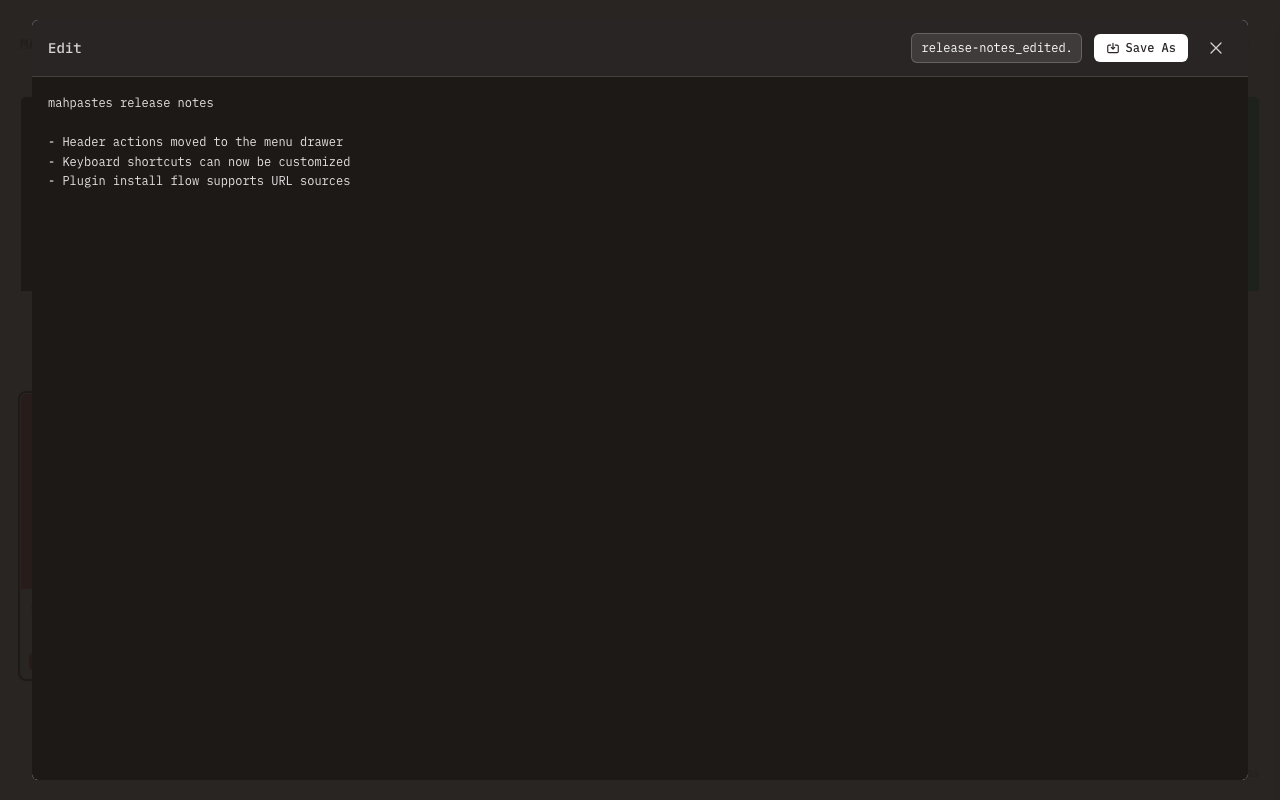
- Click the menu button (three dots) on any text clip and select Edit, or select Edit from the lightbox file menu
- The editor opens full-screen with a dark toolbar and a light content panel
- Make your changes
- Click Save to overwrite the original, or Save As to create a new clip
Clicking a text preview in the gallery also opens the editor directly.
Which mode a clip opens in
The format decides, not the entry point:
- Markdown, CSV, and TSV open in Preview. Their Preview is a genuinely different artifact — rendered Markdown or a parsed table — so landing there is worth a click to get back to source.
- Everything else opens in Edit. For plain text, logs, JSON, YAML, TOML, XML, HTML, CSS, JavaScript, TypeScript, shell,
.env, and INI/CFG/CONF, Preview is read-only highlighted source that looks nearly identical to the editor, so defaulting to it would only cost a click.
Two states override the default:
- Choosing Edit explicitly — from the card menu or the lightbox file menu — always starts in Edit, including for Markdown and CSV/TSV.
- Recovering an unsaved draft always starts in Edit and is labelled Recovered draft, so it cannot be mistaken for saved content. If the recovered source has syntax errors, the diagnostics drawer starts expanded.
Use the Preview and Edit tabs, or Cmd/Ctrl + Shift + P, to switch. Each mode keeps its own scroll position while the editor stays open; closing resets both.
Supported Types
| Format | Filenames | Content types | Opens in | Diagnostics | Formatting |
|---|---|---|---|---|---|
| Markdown | .md, .markdown | text/markdown | Preview | Renderer failure only | — |
| Plain text | .txt, .text, .log | any other text/* | Edit | None | — |
| JSON | .json | application/json, application/*+json | Edit | Errors | Two-space indent |
| JSON Lines | .jsonl, .ndjson | application/x-ndjson, application/jsonl | Edit | Errors | One compact value per line |
| YAML | .yaml, .yml | application/yaml, application/x-yaml, text/yaml, text/x-yaml | Edit | Errors | — |
| TOML | .toml | application/toml, text/toml | Edit | Errors | — |
| XML | .xml | application/xml, text/xml, application/*+xml | Edit | Errors | — |
| CSV | .csv | text/csv | Preview (table) | Possible issues | — |
| TSV | .tsv | text/tab-separated-values | Preview (table) | Possible issues | — |
| HTML | .html, .htm | text/html | Edit | Possible issues | — |
| CSS | .css | text/css | Edit | Possible issues | — |
| JavaScript | .js, .mjs, .cjs | text/javascript, application/javascript | Edit | Possible issues | — |
| TypeScript | .ts, .mts, .cts | text/typescript, application/typescript | Edit | Possible issues | — |
| Shell | .sh, .bash, .zsh | text/x-shellscript, application/x-sh | Edit | None | — |
| Environment | .env and .env.* | — | Edit | None | — |
| Properties | .ini, .cfg, .conf | text/x-ini, text/x-properties | Edit | None | — |
application/*+json and application/*+xml mean a structured-suffix match — application/vnd.api+json counts, arbitrary globs do not. .env.* covers common variants such as .env.local and .env.example; a filename that merely contains .env in the middle does not match. Filename matching is case-insensitive and uses only the final extension, so archive.json.gz is not JSON.
How a clip is classified
The first rule that matches wins:
- A specific recognized filename or extension — everything in the Filenames column above except
.txt,.text, and.log. - A specific recognized content type.
- A generic plain-text filename:
.txt,.text, or.log. - Generic text for any remaining
text/*content type. - Not a text clip.
Two consequences are deliberate. A specific extension beats a disagreeing content type, so a clip stored as text/plain but named config.yaml gets YAML behavior. And the generic plain-text family does not outrank a specific content type, so a pasted pasted_text_1234.txt clip that the app identified as application/json or text/html keeps JSON or HTML behavior.
Classification changes presentation and editor eligibility only. It never rewrites a clip's stored content type.
Renaming notes.md to notes.txt keeps Markdown behavior: the stored content type was already promoted to text/markdown, renaming away does not undo that, and a specific content type outranks a generic .txt filename. Renaming to a specific extension such as .json does change the mode, because a specific extension is checked first.
The media guard
A recognized text extension does not make a clip a text clip when its content type is image/*, audio/*, or video/*. Extensions collide across domains — .ts is both TypeScript and MPEG transport stream, and several platforms identify .ts as video/mp2t — so without this guard, opening a transport-stream video would enter the text editor and dead-end. Guarded clips take the ordinary non-text open path instead.
application/octet-stream is deliberately not treated as a media type. It is the generic "unknown" type that uploads and watch folders routinely produce, so blocking it would make a perfectly good config.yaml or notes.md uneditable. A recognized text filename under application/octet-stream is instead conditional: valid UTF-8 bytes open normally, and invalid bytes get the byte-safety screen — which is the right answer for a genuinely binary file that happened to be named .yaml.
Preview
Preview always renders the current editor value, including unsaved changes.
Rendered Markdown
Preview supports sanitized GitHub-Flavored Markdown: headings, lists, read-only task lists, tables, fenced code, strikethrough, and autolinks. Embedded HTML is restricted to safe semantic markup; scripts, forms, iframes, styles, event handlers, and author-supplied classes or IDs are removed. Mermaid, math, footnotes, and syntax highlighting inside fenced code are not included.
Links and images
- Web and email links open with the operating system's default handler. Unsafe URL schemes are blocked.
- Relative links resolve to clips through the Markdown clip's exact tags and descendant tag paths. Parent (
..) traversal is not supported. Ambiguous matches let you choose a clip. - Valid PNG, JPEG, GIF, and WebP clips referenced through the same tag paths render inline. SVG is not rendered inline.
- HTTPS images show their full URL and a Load Image button before the first download. HTTP images remain external links only.
- Approved remote images are cached by exact URL for up to one hour. A valid cache hit may display automatically. Clear the cache from Maintenance → Markdown Image Cache.
Images are limited to 15 MB each, 100 MB per Preview, and 256 image references, with additional dimension, decoded-pixel, and GIF-frame limits.
If the Markdown renderer fails, Preview falls back to inert source plus a diagnostic rather than an error screen.
CSV and TSV tables
CSV and TSV render as a bounded table with row numbers.
The delimiter is detected from comma, tab, semicolon, and pipe. TSV prefers tab, but a .tsv file that is really comma-separated still falls through to detection. Detection reads at most the first 64 KiB or 50 nonblank records with each candidate, discards any candidate whose typical record holds fewer than two fields, and then picks the winner by fewest parse errors, then fewest records deviating from the typical width, then the widest typical record, then the fixed order comma, tab, semicolon, pipe. If nothing qualifies, comma is used and the preview says detection was inconclusive.
The dialect is " for quoting, "" for a literal quote inside a quoted field, and LF, CRLF, or CR record endings. A trailing empty record caused only by the document's final newline is ignored; a blank line in the middle stays data.
The first record is treated as a header only when there are at least two records, every record has the same width of at least two fields, and every trimmed first-record field is non-empty and unique.
Two compact controls above the table let you temporarily override the interpretation:
| Control | Options |
|---|---|
| Delimiter | Detected (labelled with what detection chose), Comma, Tab, Semicolon, Pipe |
| Header | Detected, First row is a header, No header |
Both affect presentation only. Neither changes the source, and neither persists — reopening the clip returns to detection.
Missing cells in ragged records are padded so the grid stays rectangular; the source is untouched, because ragged tables are frequently intentional. When a render limit is reached, a visible notice reports the truncation and directs you to Edit for the complete source.
Source preview
Every other format previews as read-only highlighted source with line numbers, selectable text, preserved whitespace, and the same wrap preference as Edit.
Source text becomes text nodes and app-owned styling spans, and nothing else. Nothing in a source preview is ever executed, no markup is ever injected, no remote resource is loaded, and URLs are not turned into clickable links. HTML source is highlighted text, not a rendered page. There is no rendered preview for HTML, CSS, JavaScript, TypeScript, XML, or configuration formats.
Invalid syntax does not replace Preview with an error screen — a recoverable parse still highlights, and a parser or highlighter failure falls back to plain source plus a diagnostic.
Editing
Edit mode provides:
- Syntax highlighting chosen from the classification result above — never guessed from content
- Line numbers
- Matching-bracket feedback and language-appropriate indentation
- Undo and redo
- Find and replace, with Aa (match case) and Word (whole word) toggles
- Selectable line wrapping, remembered between clips
- Cursor line/column and a document character count
- Inline diagnostic markers
There is no completion popup, no auto-closing of brackets or tags, no hover documentation, and no code execution. Spellcheck, autocorrect, and autocapitalization are off.
All text displays in IBM Plex Mono, and both modes show the complete content — unlike the gallery card preview, which is limited to 500 characters.
Tab moves focus out of the editor rather than inserting an indent, so the editor stays keyboard-navigable. Use spaces to indent.
Find and replace
Open the panel with the Find / Replace button or Cmd/Ctrl + F. It reports N of M matches and supports next, previous, replace, and replace all. Aa and Word both default to off — an untouched panel matches case-insensitively across word boundaries — and neither is remembered between opens. The active match stays highlighted while you are typing in the query field.
Keyboard Shortcuts
| Shortcut | Action |
|---|---|
| Cmd/Ctrl + A | Select all |
| Cmd/Ctrl + C | Copy |
| Cmd/Ctrl + V | Paste |
| Cmd/Ctrl + X | Cut |
| Cmd/Ctrl + Z | Undo |
| Cmd/Ctrl + Shift + Z | Redo |
| Cmd/Ctrl + Y | Redo (alternative) |
| Cmd/Ctrl + F | Open Find / Replace |
| Cmd/Ctrl + Shift + P | Toggle Preview/Edit |
| Cmd/Ctrl + S | Save as new clip |
| Esc | Close editor |
The Preview/Edit toggle is registered as the rebindable action Toggle Preview/Edit and applies to every previewable text clip. It was previously Markdown-only; if you had rebound it, your custom binding is carried over automatically the first time this version starts and the old entry is removed.
Rebind any of these from Menu Drawer → Settings → Keyboard Shortcuts.
Diagnostics
Findings appear in a collapsible drawer below the active panel, at two levels:
- Error — from a format validator that can give a reliable verdict: JSON, JSON Lines, YAML, TOML, and XML. Errors may require confirmation before saving.
- Possible issue — from parser error recovery for HTML, CSS, JavaScript, and TypeScript; from every CSV and TSV finding; and from renderer failures. Possible issues are counted and navigable but never block or confirm a save.
For the five formats with a reliable verdict, the toolbar also shows a live status — Valid JSON, or Invalid YAML · Ln 12, Col 3.
Plain text, logs, shell, .env, and INI/CFG/CONF produce no diagnostics at all. Their dialects are too ambiguous to promise reliable errors, so they get highlighting only — in particular, no shell parser is bundled.
What each validator promises:
| Format | Contract |
|---|---|
| JSON | Strict JSON. Comments, trailing commas, NaN, and Infinity are errors. |
| JSON Lines | Exactly one complete strict JSON value per non-blank line. Blank lines are allowed. |
| YAML | YAML 1.2 core. Duplicate mapping keys are errors. Aliases are counted, never expanded. |
| TOML | TOML 1.0 syntax. |
| XML | Well-formedness only — unclosed tags, mismatched names, bad nesting, illegal characters. No schema validation. |
XML DOCTYPE declarations are accepted as inert syntax. Entities are never expanded, external resources are never fetched, and XInclude is never processed. A reference to an entity that was never declared is accepted rather than reported, because telling it apart from a declared one would require the entity table this feature deliberately does not build. The five predefined entities and numeric character references behave normally.
The drawer
- It starts collapsed. The one exception is a recovered draft whose source has errors, which starts expanded.
- New errors never expand it while you type.
- Collapsed, it reports the counts — for example
2 errors, 1 possible issue. - It expands when you activate the count, click an inline marker, or attempt a save that needs confirmation.
- Rows are keyboard-operable. Activating one switches to Edit if needed, focuses the editor, and selects the reported range.
- It lists at most 100 findings and reports how many more were suppressed.
Validation is debounced while you type, reruns when you enter Preview, and completes before a save proceeds.
When validation cannot finish
If a validator hits a resource limit or exceeds its deadline, the drawer shows Validation unavailable within safety limits and saving continues. This never claims the document is valid and never triggers a save confirmation, because no error was established.
Save confirmation
Confirmation is reserved for damage an edit just did. On save:
| Document as opened | Now | Result |
|---|---|---|
| Valid | Has errors | Confirm: "This edit introduced N errors" |
| Already invalid | Same errors | Saves with no prompt |
| Already invalid | Different errors | Confirm: "N errors changed" |
The baseline is the stored bytes, validated once when the clip opens and before any draft is recovered — a recovered draft is an edit like any other, measured against what is on disk. A successful save resets the baseline to what was just written. Confirming applies only to that attempt; a later save whose errors changed again asks again.
The reason for the middle row is that a whole class of real files is invalid by construction and never becomes valid: Helm templates full of {{ }}, GitHub Actions expressions, JSON with comments saved as .json, XML fragments without a single root. Prompting on every save of such a file trains you to click through the dialog, which destroys its value for the case it exists to catch. The errors are still shown, still counted, and still navigable.
Possible issues never prompt.
Formatting
JSON and JSON Lines have a Format JSON / Format JSON Lines button. There is no formatter for YAML, TOML, XML, CSV/TSV, HTML, CSS, JavaScript, TypeScript, shell, or properties files.
- Formatting is always explicit. It never runs during preview or on save.
- JSON is re-indented with two spaces; JSON Lines collapses each non-blank value onto one line and preserves blank lines.
- Numbers and literals are re-emitted exactly as written, so long numeric values are not rounded.
- The button is disabled while the document has syntax errors, above the enhanced-assistance threshold, and while a save is in flight.
- The result is a normal undoable edit: Cmd/Ctrl + Z reverses it, the clip becomes dirty, and diagnostics rerun.
- Formatting preserves the document's byte-order mark, line-ending style, and final-newline state.
Formatting refuses documents whose indented form would be disproportionate — nesting deeper than 256 levels, or output beyond about 4 million characters. Indented JSON amplifies quadratically with nesting depth, so a small pathological file can ask for a result thousands of times its own size. The toast says which limit was hit.
Limits
| Limit | Value | Effect |
|---|---|---|
| Editable size | 16 MiB | The editor declines to open; download the clip instead |
| Enhanced assistance | 2 MiB | Above it: plain preview and editing only — no highlighting, validation, diagnostics, formatting, or table preview |
| Parse budget | 131,072 characters (~128 KiB) | Above it: no preview highlighting and no possible-issue findings from parser recovery. Editing and the editor's own highlighting are unaffected |
| Preview lines | 50,000 | Above it: plain source instead of a line-numbered, highlighted panel |
| Highlighted regions | 100,000 | Above it: plain source with an explanation |
| Table rendering | 500 rows, 100 columns, 10,000 cells | Stops at the first limit reached and reports the truncation |
| Delimiter detection | 64 KiB or 50 non-blank records | The prefix each candidate delimiter is scored against |
| Findings collected | 1,000 (100 shown) | Collection stops; the drawer reports the suppressed remainder |
| YAML | 64 documents, 100 aliases per document, 100,000 nodes | Reports "Validation unavailable within safety limits" |
| XML | Nesting depth 256, 100,000 element/attribute events | Reports "Validation unavailable within safety limits" |
| CSV/TSV validation | 100,000 records, 1,000,000 fields | Reports "Validation unavailable within safety limits" |
| Validation deadline | 1.5 s | Reports "Validation unavailable within safety limits"; saving continues |
Validation and formatting normally run off the interface thread. On a platform where that is unavailable, they fall back to a bounded on-thread mode with a 250 ms budget and a much lower 64 KiB ceiling — above that ceiling a document behaves like an over-2-MiB one: plain editing and preview, no diagnostics. The fallback is chosen automatically at startup by a capability check, so which mode is in use is not something you configure.
Enhanced assistance is re-evaluated as you type, not fixed when the clip opens: pasting past 2 MiB turns it off, and deleting back under turns it on again.
Text fidelity
Opening a document records three things about it, and an ordinary save writes them back unchanged:
- Whether it starts with a UTF-8 byte-order mark
- Its line-ending style — LF, CRLF, or CR
- Whether it ends with a newline
The editor always shows LF line endings and hides the byte-order mark, so neither is something you can damage by editing. Saving an unmodified document writes back byte-for-byte identical content.
Two caveats:
- Final-newline state follows the current value, so deliberately adding or removing the last newline is respected.
- A document with deliberately mixed line endings is outside the guarantee. Its dominant style is used for the whole document on save.
One case is refused rather than mangled. If the editor value contains an unpaired surrogate — half of a character pair, which can only arrive by pasting broken data — Save and Save As refuse and name the position, instead of silently writing replacement bytes in its place.
Invalid UTF-8
A text clip whose bytes are not valid UTF-8 cannot be previewed or edited. The editor shows a byte-safety screen explaining that displaying it would require replacing bytes that cannot be recovered afterwards, and Save and Save As are unavailable — including the keyboard save.
This now applies to every text format. Previously, only invalid Markdown was protected this way; other invalid text/* clips opened in the editor with unrecoverable bytes already replaced, so saving could overwrite the clip with content you never saw. That path has been removed deliberately.
The clip's stored bytes are untouched, and downloads, REST responses, public links, tag servers, and mp clip data still return them exactly.
The byte-safety screen names the planned recovery path: a future release will add a user-initiated, one-way Reinterpret as Windows-1252 and convert to UTF-8 action that shows the decoded result before writing anything. Until then, a clip in a non-UTF-8 encoding is read-only in the app; download it and convert it with a tool that can do so explicitly.
Saving Changes
Save (overwrite)
Click Save to overwrite the original clip. The filename and content type stay the same.
Save as new clip
Click Save As (or press Cmd/Ctrl + S) to create a new clip, leaving the original unchanged. The proposed filename has _edited appended.
Save As validates against the filename you propose, not the one you opened. Saving notes.txt as notes.json is checked as JSON before the upload, and any errors that finds count as newly introduced.
The frontend does not rewrite a clip's content type. The app's existing upload behavior is unchanged: a new clip uploaded as text/plain may still be identified as application/json or text/html from its content, exactly as it was before this feature.
While a save is running
Save works from an immutable snapshot taken the moment you activate it. You can keep typing while it runs; those edits are simply not part of the save. When the write finishes, the editor stays open with your newer edits still unsaved, and a toast says so. A save with nothing typed after it closes the editor as usual.
If a save fails, your content, selection, diagnostics, dirty state, and draft are all retained.
Drafts
Unsaved changes are kept locally so an accidental close or crash does not lose them. Recovering a draft opens in Edit and labels the clip as a recovered draft. A successful save, a successful Save As, or a confirmed discard clears the draft; a failed or cancelled save keeps it.
Cancel
Click the close button (X) or press Esc. If the content changed, mahpastes asks you to confirm before discarding.
Documented deviations
Two behaviors differ from the strictest reading of the design and are recorded deliberately:
- XML DOCTYPE internal subsets are not syntax-checked. The XML parser treats the internal subset as opaque, so a malformed subset such as
<!DOCTYPE r [<!ENTITY>]>reports nothing. Checking it would require a DTD parser and an entity table, which this feature explicitly does not build. The cost is a missed warning on a rare malformed DOCTYPE — never a wrong verdict on a well-formed document. - A validator stopped by a resource limit discards the findings it had already collected and reports "Validation unavailable within safety limits" instead of a partial list. A partial list would make the save comparison lie: it could look like "the same errors as before" when the difference happened to sit past the limit.
Both are also documented next to the code that implements them, in frontend/src/text-editor/validators/xml.js and the collector in frontend/src/text-editor/diagnostics.js.
Release notes
User-visible changes in this release. Two of them change save behavior.
- A document that was already invalid when you opened it no longer prompts on save. Confirmation is now reserved for syntax errors your edit introduced or changed. Previously, any invalid JSON prompted on every save. See Save confirmation.
- Save operates on an immutable snapshot. Edits made while a save is in flight no longer affect the bytes being written; the editor stays open with those edits unsaved instead of closing. Previously, a slow save could write a mixture of what you confirmed and what you typed afterwards.
- Invalid-UTF-8 text clips are now read-only in every format, not just Markdown. Previously they opened in the editor with unrecoverable bytes already replaced, so a save could overwrite bytes you never saw. The named follow-up is a user-initiated Windows-1252 conversion action. See Invalid UTF-8.
- Renaming
.mdto.txtkeeps Markdown behavior. The stored content type staystext/markdown, and a specific content type outranks a generic.txtfilename. Renaming to a specific extension such as.jsondoes change the mode. See Renaming.
Also new: Preview and Edit for every recognized text format, syntax highlighting and line numbers, diagnostics for JSON/JSON Lines/YAML/TOML/XML, bounded CSV/TSV table previews, explicit JSON and JSON Lines formatting, byte-order-mark and line-ending preservation, match-case and whole-word toggles in Find/Replace, and a 16 MiB cap on editable text clips. The Preview toggle shortcut is no longer Markdown-only; a custom binding for the old Markdown-only action migrates automatically.