Image Comparison
Compare two images using fade, slider, and diff modes. Includes zoom, alignment controls, image info, and keyboard shortcuts.
Starting a Comparison
- Select exactly two image clips using the checkboxes
- The Compare button appears in the bulk action bar
- Click Compare to open the comparison modal with both images loaded
Comparison Modes
Fade Mode
Transition between two images with opacity control.
How it works:
- A slider controls the blend between images
- 0% = First image only
- 100% = Second image only
- Any position in between = Blended view
Best for:
- Subtle color changes
- Overall composition differences
- A/B testing designs
Slider Mode
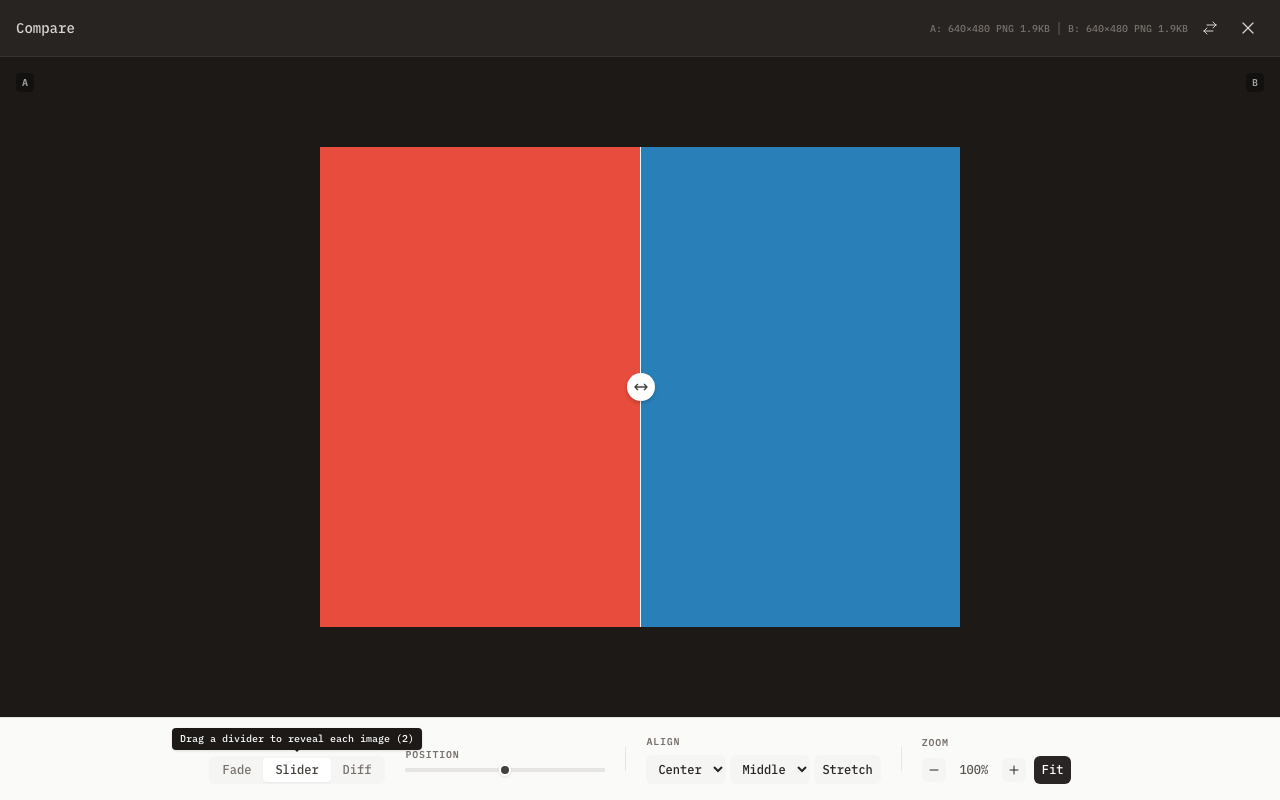
A vertical divider reveals each image on its respective side.
How it works:
- Drag the vertical divider left or right
- Left side shows the first image, right side shows the second
- Click anywhere in the comparison area to reposition the divider (not just the handle)
- The position slider below also controls the divider
- Touch drag is supported
Best for:
- Pixel-perfect comparisons
- Spotting specific differences
- Before/after views
Diff Mode
Shows pixel-level differences between the two images.
How it works:
- Pixels that differ are highlighted; identical pixels are dimmed
- A threshold slider (1--100) controls sensitivity -- lower values catch smaller differences
- A similarity percentage score is displayed, showing how closely the images match
- The default threshold is 30 when switching to Diff mode via keyboard shortcut
Best for:
- Finding subtle changes between revisions
- Verifying that two images are identical
- QA and regression testing of visual output
Diff images are cached per threshold value during a comparison session. Changing the threshold triggers a new backend computation, but returning to a previously used threshold value loads instantly from cache.
Controls
Swap
Click the Swap button (or press S) to swap the two comparison images. The first image becomes the second and vice versa.
Image Info
Displays dimensions, file size, and content type for both images in the comparison header. A warning indicator appears when the two images have different dimensions.
Zoom
| Control | Action |
|---|---|
| Zoom In button | Multiply zoom by 1.2x (max 500%) |
| Zoom Out button | Divide zoom by 1.2x (min 10%) |
| Fit button | Fit images to viewport (capped at 100%) |
The current zoom level is displayed as a percentage. Zoom is applied via CSS transform.
Alignment
Position the images within the comparison viewport:
- Horizontal: Left, Center, or Right
- Vertical: Top, Middle, or Bottom
Stretch
When images have different sizes:
- Off: Images display at natural size with
object-fit: contain - On: Images are stretched to 100% of the container width and height with
object-fit: fill
Enable Stretch mode when comparing images of different dimensions. This aligns them spatially for easier comparison.
Use Cases
Design Review
- Export two versions of a design
- Import both into mahpastes
- Compare to review changes
- Use slider mode to check alignment
Bug Verification
- Screenshot before the fix
- Screenshot after the fix
- Compare to verify the bug is resolved
- Use fade mode to highlight the change
Photo Editing
- Original photo
- Edited version
- Compare to judge the edit quality
- Zoom in to check details
A/B Testing Designs
- Variant A screenshot
- Variant B screenshot
- Switch between with fade mode
- Present to stakeholders
Keyboard Shortcuts
| Shortcut | Action |
|---|---|
| 1 | Fade Mode |
| 2 | Slider Mode |
| 3 | Diff Mode |
| S | Swap Images |
| + / = | Zoom In |
| - | Zoom Out |
| 0 | Fit to Viewport |
| ← / → | Adjust fade/slider/diff range |
| Esc | Close Comparison |
Tips
Getting the Best Comparison
- Same dimensions: Crop images to the same size before importing
- Same position: Screenshot the same area for accurate comparison
- High zoom: Check fine details at high zoom levels
- All three modes: Use fade for overview, slider for spatial inspection, diff for pixel-level analysis
Common Workflow
- Take screenshots of both states
- Paste into mahpastes
- Select both, click Compare
- Start with fade mode to see overall changes
- Switch to slider mode for precise inspection
- Use diff mode to find subtle pixel differences
- Zoom into areas of interest
- Close when done
Defaults
- Mode: Fade
- Slider/opacity position: 50% (Diff mode defaults threshold to 30)
- Alignment: Center / Middle
- Stretch: Off
Closing
Close the comparison modal by clicking the X button, clicking outside the comparison area, or pressing Esc.
Limitations
- Only two images can be compared at once
- Slider mode has a vertical divider only (no horizontal split)
- Very large images may affect performance