Archive
Keep important clips separate from your active workspace. The archive provides long-term storage for clips you want to save but don't need cluttering your main gallery.
Why Use Archive?
- Declutter: Keep your main gallery focused on active work
- Organize: Separate reference material from transient clips
- Find Later: Search works in the archive view just like in the main gallery
Archiving Clips
Single Clip
- Click the menu button (three dots) on the clip
- Select Archive
- The clip moves to Archive
Multiple Clips
- Select multiple clips using the checkboxes
- Click Archive in the bulk action bar
- All selected clips move to Archive
Viewing the Archive
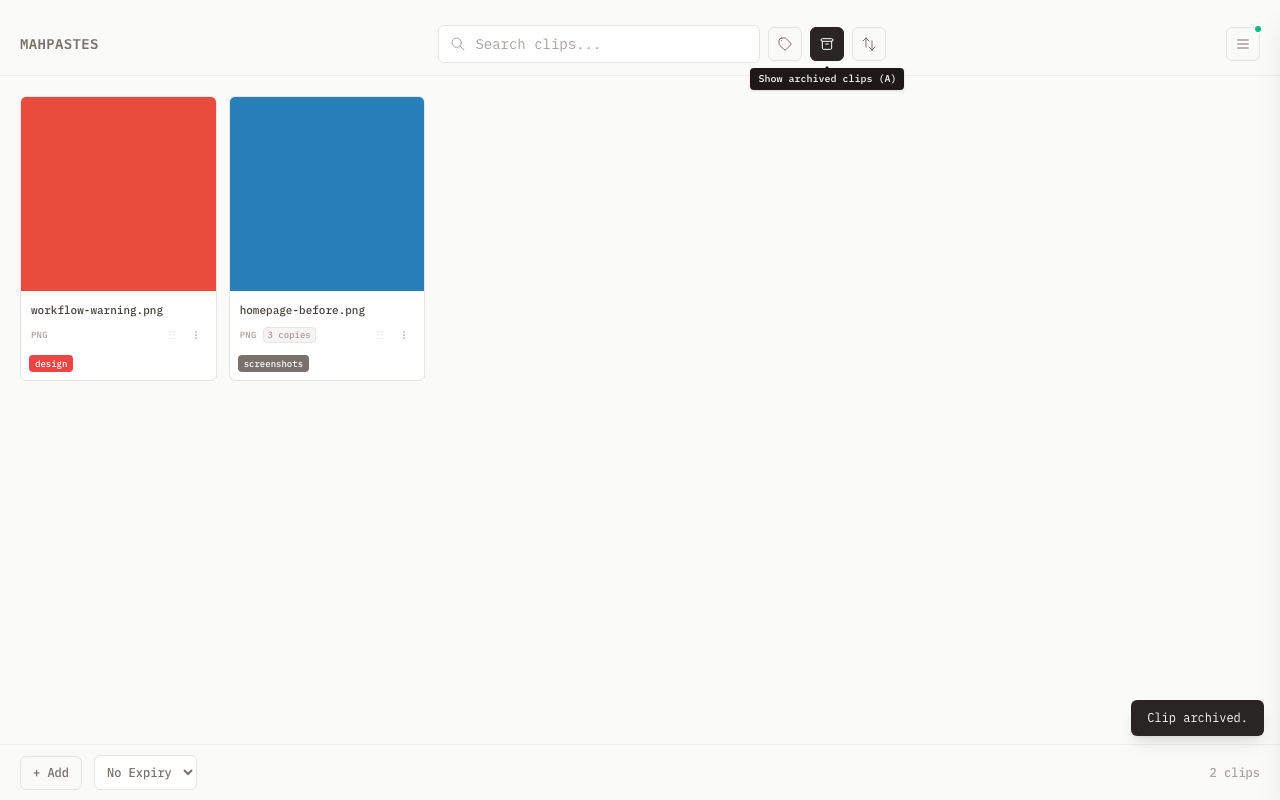
Click the archive button in the header (box icon), or open the navigation drawer and click Archive. You can also press A to toggle between the main gallery and the archive view.
The archive view shows:
- All archived clips in a grid
- Same display format as main gallery
- Search and tag filters work here too
Unarchiving
Single Clip
- Open the Archive view
- Click the menu button (three dots) on the clip
- Select Restore
- The clip returns to the main gallery
Multiple Clips
- Select multiple archived clips using the checkboxes
- Click Restore in the bulk action bar
- All selected clips return to gallery
The bulk archive operation currently always sets clips to archived (is_archived = 1) regardless of context. This means clicking Restore in the archive view re-archives the selected clips instead of restoring them. Use single-clip restore via the context menu as a workaround.
Archive Behavior
Expiration
Archiving a clip does not remove any existing expiration. If a clip has an auto-delete timer, it will still expire even when archived. The cleanup job runs regardless of archive status. To keep an archived clip permanently, cancel its expiration first. See Auto-Delete for details.
Plugin Events
Archiving and unarchiving a clip emits plugin events (clip:archived and clip:unarchived). Plugins that subscribe to these events in their manifest can react to archive state changes.
All Features Available
Archived clips support the same context menu operations as active clips:
- Open / Open With
- Copy (Path, File, or Contents)
- Save to disk
- Edit (images and text)
- Tags and Metadata
- Rename
- Set or Cancel Expiration
- Delete
Search
The search bar filters whichever view is currently active:
- Main gallery clips when in gallery view
- Archived clips when in archive view
It does not search across both simultaneously.
Use Cases
Reference Material
Store frequently-needed content:
- Code snippets
- Configuration templates
- Image assets
- API response examples
Important Screenshots
Preserve key screenshots:
- Bug reports
- Design mockups
- Meeting notes
- Documentation
Templates
Keep reusable content:
- Email templates
- Code boilerplate
- Common configurations
- Frequently-used text
Workflow Examples
Developer Workflow
- Paste code snippets during development
- Archive useful patterns for reuse
- Main gallery stays clean for active work
- Search archive when you need that snippet again
Designer Workflow
- Capture design variations
- Archive approved versions
- Compare against archive for consistency
- Keep working designs in main gallery
Writer Workflow
- Collect research and references
- Archive important sources
- Work with active materials in gallery
- Return to archive for citations
Tips
When to Archive
Archive content that:
- You'll need again later
- Represents completed work
- Serves as reference material
- Is too valuable to lose
When Not to Archive
Keep in main gallery:
- Active working materials
- Temporary transfers
- Content with short-term relevance
Regular Maintenance
- Review main gallery periodically
- Archive valuable clips
- Delete unused clips
- Keep both views manageable
Naming
Provide meaningful filenames when importing (e.g., api-response-template.json). Good names make archive search more effective.
Cleanup
Review old archived clips periodically and delete truly outdated content.