Clipboard Management
Store, organize, and retrieve clipboard content.
Supported Content Types
mahpastes handles these content types:
| Type | Examples | How It's Displayed |
|---|---|---|
| Images | PNG, JPG, GIF, WebP, BMP, TIFF, SVG | Thumbnail preview |
| Videos | MP4, WebM, and other browser-supported codecs | Frame thumbnail and lightbox playback |
| Text | Plain text, notes | Text preview (first 500 characters) |
| Code | Any programming language | Monospace text preview |
| JSON | API responses, configs | Formatted JSON preview |
| HTML | Web page snippets | HTML source preview |
| Files | Any file type | Filename with type icon |
Adding Clips
Paste from Clipboard
The main way to add content:
- Copy something to your system clipboard (from any app)
- Focus the mahpastes window
- Press Cmd/Ctrl + V
mahpastes detects the content type and stores it.
Pasting a File Path
Copying a file as a pathname (Finder's Copy as Pathname, Explorer's Copy as path, or dragging a file into a terminal) puts plain text on the clipboard, which is ambiguous: you may want the path itself, or the file it points to.
When pasted text names a file that exists on this computer, mahpastes asks which one you meant. You can paste several paths at once — one per line — as long as every line resolves to a file. Paths that don't exist, and paths naming a folder or anything that isn't an ordinary file, are pasted as text without a prompt.
Paths mahpastes handed out itself — from Copy Path, or from dragging a clip out of the window — are also pasted as text. Re-importing one would just duplicate the clip you copied it from.
Recognized forms: absolute paths (/Users/me/photo.png, C:\Users\me\photo.png), ~/-relative paths,
file:// URLs, and paths that are quoted or shell-escaped. Relative paths are not resolved.
To skip the prompt, set Settings → Pasted File Paths → On paste (desktop only — a browser session served over the network can't see your filesystem, so pasted paths always stay text there):
| Option | Behavior |
|---|---|
| Ask which one I meant | Prompt each time (default) |
| Keep the path as text | Always store the path as a text clip; never read the file |
| Add the file it points to | Always import the file, prompting only when the path isn't a real file |
Drag and Drop
Drop files directly into the app:
- Select one or more files in Finder/Explorer
- Drag them onto the mahpastes window
- Release to import
Supported drop types:
- Single files
- Multiple files at once
Expiration
Set per-clip expiration when uploading (dropdown in the bottom bar) or on existing clips via the context menu. See Auto-Delete for details.
Viewing Clips
Gallery View
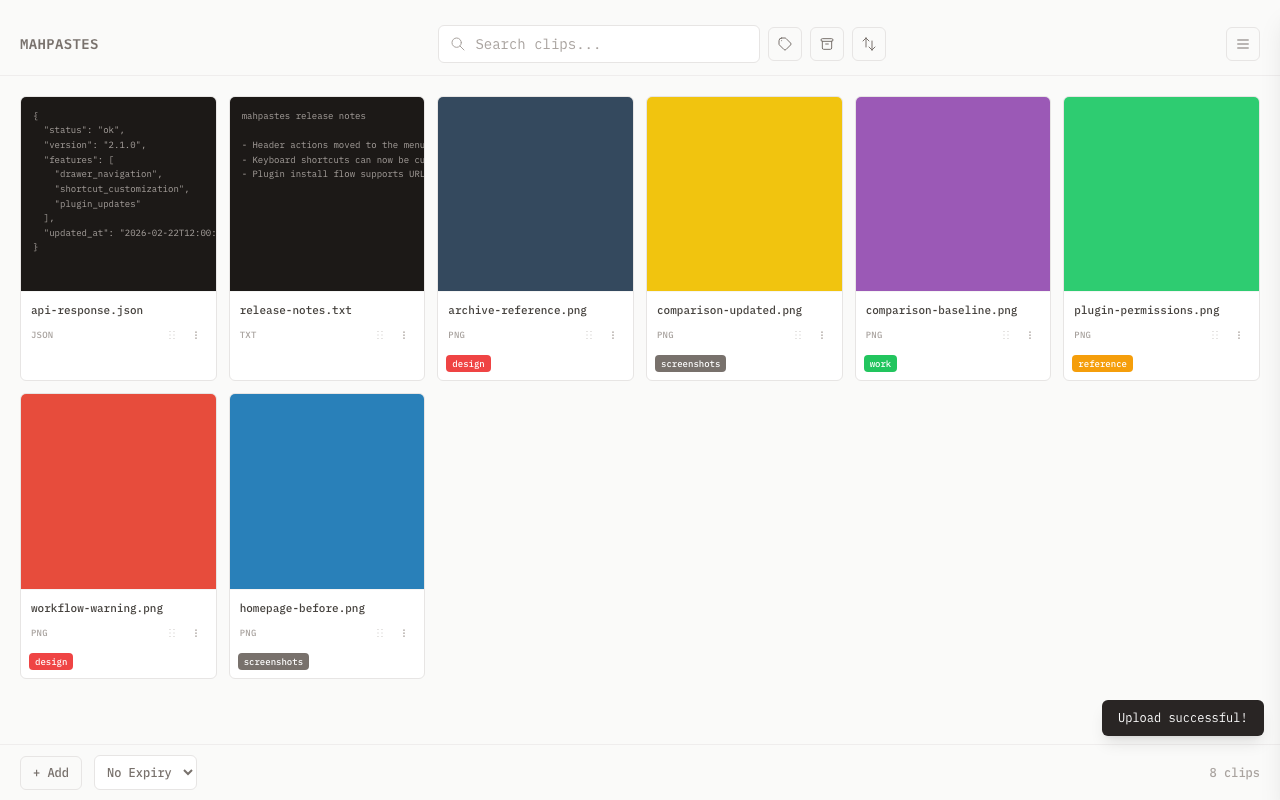
Clips display in a grid:
- Large thumbnails for images
- Text previews for text-based content
- Metadata showing filename, type, and timestamp
Lightbox
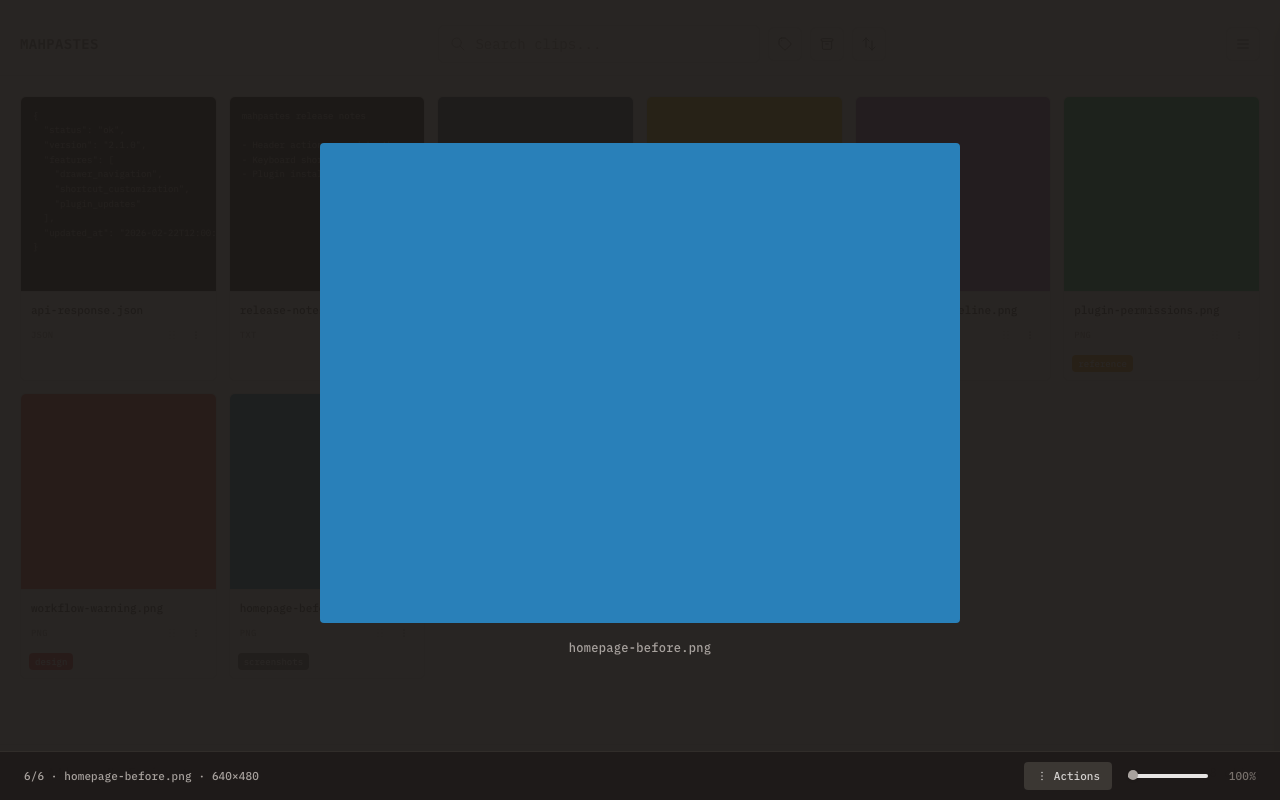
Click any image or video clip's preview to open it in a full-screen lightbox. Videos use the native playback controls and load on demand; available codecs depend on your browser or platform WebView.
Navigation:
- Arrow keys or arrow buttons to move between images and videos
- Swipe left/right on trackpad or touchscreen
- Trackpad horizontal scroll with momentum detection
Zoom and pan:
These controls apply to images; videos keep their native playback controls.
- Slider in the bottom bar (1x to 4x)
- Trackpad pinch to zoom
- Touch pinch to zoom
- Double-click to reset zoom to 1x
- Click and drag to pan when zoomed in
Bottom bar:
- Position counter (e.g. "1/5"), filename, and media details
- Zoom slider with percentage display for images
- Actions menu with Open, Open With, Copy (Path / File / Contents), Save, Edit, Tags, Metadata, Rename, Set Expiration / Cancel Expiration, Merge Duplicates (if duplicates exist), Archive, Delete
- Plugin action menu (if plugins define lightbox actions)
Right-clicking the image opens that same Actions menu at the pointer.
Closing:
- Esc closes the lightbox (any open menu closes first)
- Clicking the dark area around the image closes it too
Backdrop clicks only count when they are just that — clicking the image itself, releasing a pan drag over the backdrop, and a click that only dismisses an open menu all leave the viewer open. To disable backdrop closing entirely, turn off Settings → Image Viewer → Click outside image to close. The preference is remembered across restarts.
Keyboard shortcuts:
| Shortcut | Action |
|---|---|
| Esc | Close lightbox (closes open menus first) |
| Arrow Left | Previous image |
| Arrow Right | Next image |
| Cmd/Ctrl + C | Copy image contents to clipboard |
Opening Content
- Images: Click the preview to open in the lightbox
- Videos: Click the frame preview to play in the lightbox
- Text/Code/JSON/HTML: Click the preview to open in the text editor
Content Detection
mahpastes categorizes content by MIME type:
text/plain     → Plain text editor
text/html      → HTML source view
application/json → Formatted JSON view
image/*        → Image viewer/editor
video/*        → Video player
Retrieving Clips
Context Menu
Click the three-dot menu button on any clip card, or right-click anywhere on the card, to open the context menu. The menu uses submenus to group related actions. Available actions:
- Open -- opens the clip with the system default application
- Open With -- opens a file dialog to choose an application
- Copy (submenu) -- expands to show Path, File, and Contents
- Path -- creates a temporary file and copies the absolute path to clipboard
- File -- copies the clip as a file to the system clipboard (macOS via NSPasteboard, Windows via PowerShell; not supported on Linux)
- Contents -- copies raw text or image data to the system clipboard (available for text/*, application/json, and image/* types; non-PNG images are converted to PNG before copying)
- Save -- opens a native save dialog to export the clip to disk
- Edit -- opens the image editor or text editor (shown for editable types)
- Tags -- opens the tag popover
- Metadata -- opens the metadata modal for viewing and editing key-value pairs
- Rename -- opens a prompt to change the clip's filename
- Set Expiration -- opens expiration preset popover (shown when clip has no expiry)
- Cancel Expiration -- removes expiration (shown when clip has an active expiry)
- Archive / Restore -- toggles archive state
- Merge Duplicates -- merges duplicate clips (shown when duplicates exist)
- Delete -- deletes the clip after confirmation
If plugins define card actions, they appear in a Plugins submenu below a divider.
When more than one clip is selected, right-clicking one of the selected clips opens the bulk actions instead of this menu. See Bulk Actions.
Files created via "Copy Path" are stored in a temp directory and cleaned up periodically (60-minute lease) and when mahpastes exits. Don't rely on them for permanent storage.
Organizing Clips
Search
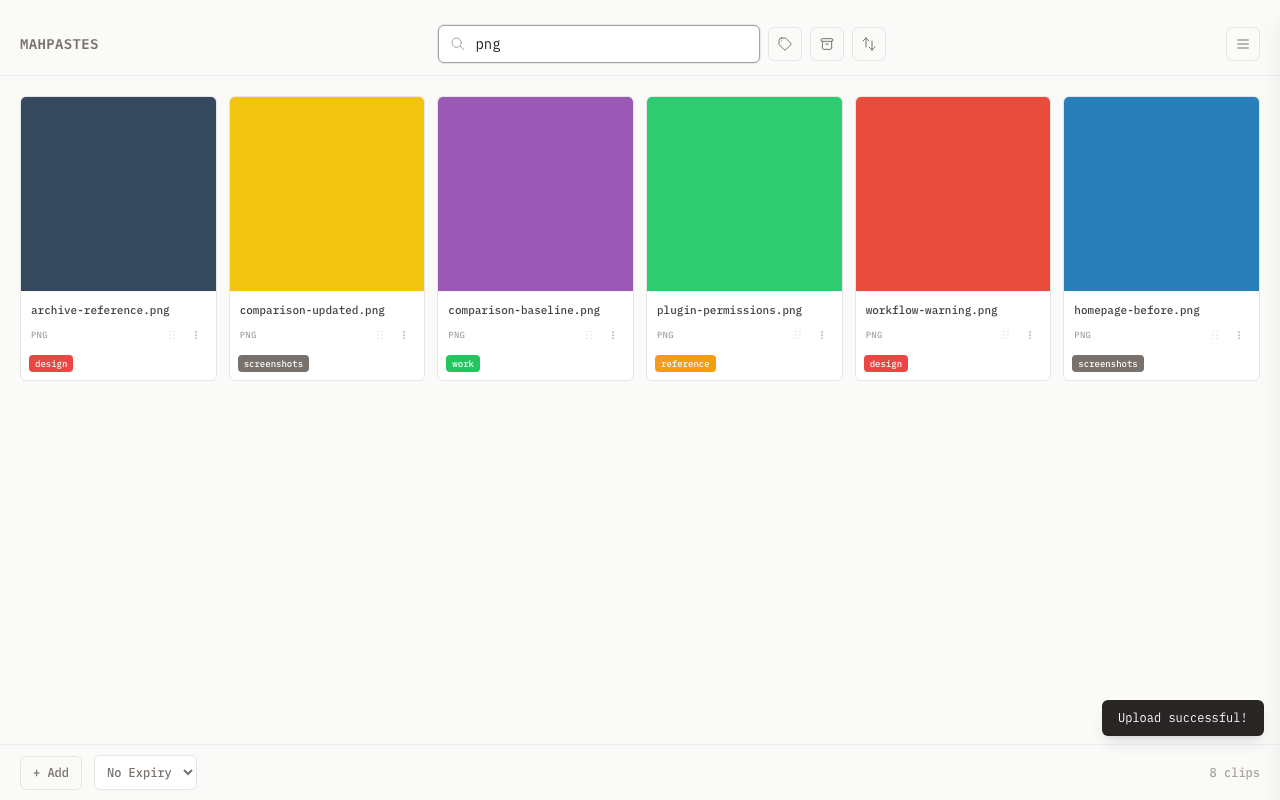
Filter clips by filename and content type:
- Type in the search bar to filter
- Search is case-insensitive substring matching against the filename and MIME type
- Results update as you type
- Press Enter to move focus to the first visible result
- Filters only the currently visible cards (does not search clip contents)
- Works in both the main gallery and archive views (whichever is active)
Search options
The sliders button inside the search box opens two options that widen a search beyond the cards on screen:
- Search file contents — looks inside text and JSON clips, not just their names. This option is remembered between sessions.
- Show hidden clips — includes clips carrying a hidden tag. Results that only appear because of this are dimmed. The option resets to off each time mahpastes starts, so hidden stays hidden by default.
With either option on, the database searches the whole library rather than only the clips currently loaded in the gallery, then returns the first 50 matches in the selected sort order. The interface does not currently indicate when more matches exist. Both options are unavailable in folder view, where a folder lists one exact tag level.
Archive
Move important clips to a separate space:
- Click the menu button (three dots) on a clip
- Select Archive
- The clip moves to the Archive view
- Access archived clips via the Archive button
Archived clips:
- Don't appear in the main gallery
- Can be unarchived at any time
Archiving does not remove expiration. If a clip has an auto-delete timer, it will still expire even when archived.
Delete
Remove clips you no longer need:
- Click the menu button (three dots) on a clip
- Select Delete
- Confirm the deletion
Deleted clips are permanently removed from the database.
Content Type Details
Images
Supported formats:
- PNG, JPG, JPEG, GIF
- WebP, BMP, TIFF
- SVG (displayed as image)
When pasting from clipboard, images are typically captured as PNG.
Text Content
mahpastes distinguishes between:
- Plain text: Regular text content
- HTML: Content whose trimmed body starts with
<!DOCTYPE html(case-sensitive prefix match) - JSON: Any string that parses as valid JSON
Detection runs at upload time when the incoming content type is text/plain or empty. Files uploaded with an explicit non-text content type keep their original type.
Binary Files
For non-text files:
- Stored as binary blobs
- Displayed with appropriate icons
- Full file preserved for export
Sorting
Control the order of clips in the gallery using the sort popover in the bottom bar.
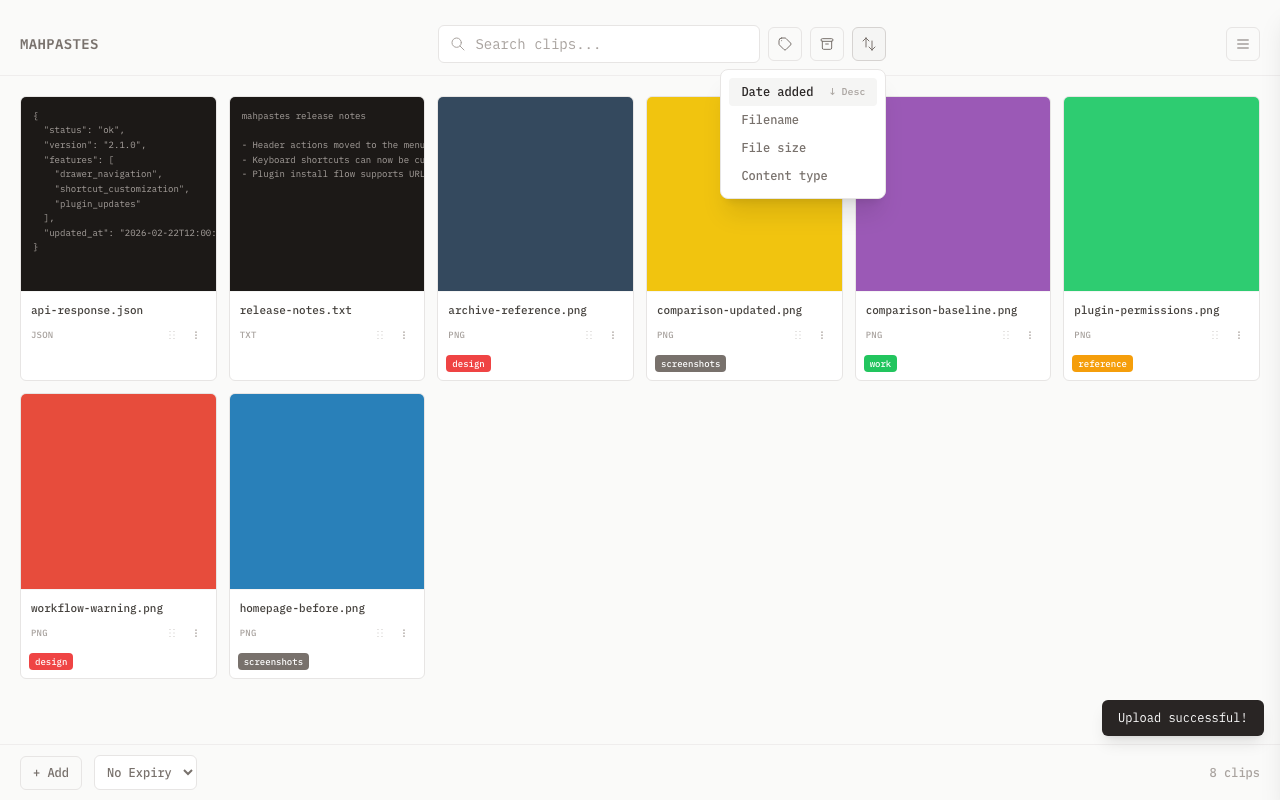
| Sort Field | Description |
|---|---|
| Date added | Creation timestamp (default, newest first) |
| Filename | Alphabetical by filename |
| File size | Clip data size in bytes |
| Content type | MIME type string |
Click the active sort field to toggle between ascending and descending. Click a different field to switch to it (defaults to descending). The sort preference (field and direction) is persisted to the settings table and restored on app launch. A secondary tiebreaker of created_at + id keeps the order stable when two clips share the same value for the primary sort field.
Limits and Performance
- Clip limit: Gallery and deep-search queries return at most 50 clips
- File size: No hard limit, but very large files may slow performance
- Preview size: Text previews limited to 500 characters
For large collections, use search and archive to keep the main gallery manageable.
Related
- Drag and Drop -- drag clips out of the app
- Bulk Actions -- operate on multiple clips at once
- Tags -- organize clips with color-coded labels
- Image Editor -- annotate images
- Text Editor -- edit text clips
- Metadata -- attach key-value pairs to clips