Tags
Organize clips with color-coded tags for quick filtering and grouping.
What Tags Do
Tags are labels you can attach to clips. They help you:
- Group related clips across content types
- Filter the gallery to find items quickly
- Keep long-running work organized
Each tag has:
- A name (for example:
work,screenshots,reference) -- up to 50 characters - An automatically assigned color
Creating and Assigning Tags
From a Clip
- Open a clip's three-dot menu
- Click Tags
- In the tag popover, check existing tags to assign/unassign
Create a New Tag While Tagging
- Open the Tags popover for a clip
- Type a new name in New tag name...
- Press Enter or click Add
The tag is created and immediately assigned.
Bulk Tagging
Apply tags to many clips at once:
- Select clips with their checkboxes
- Click Tag in the bulk action bar
- Check or uncheck tags in the popover
Filtering by Tags
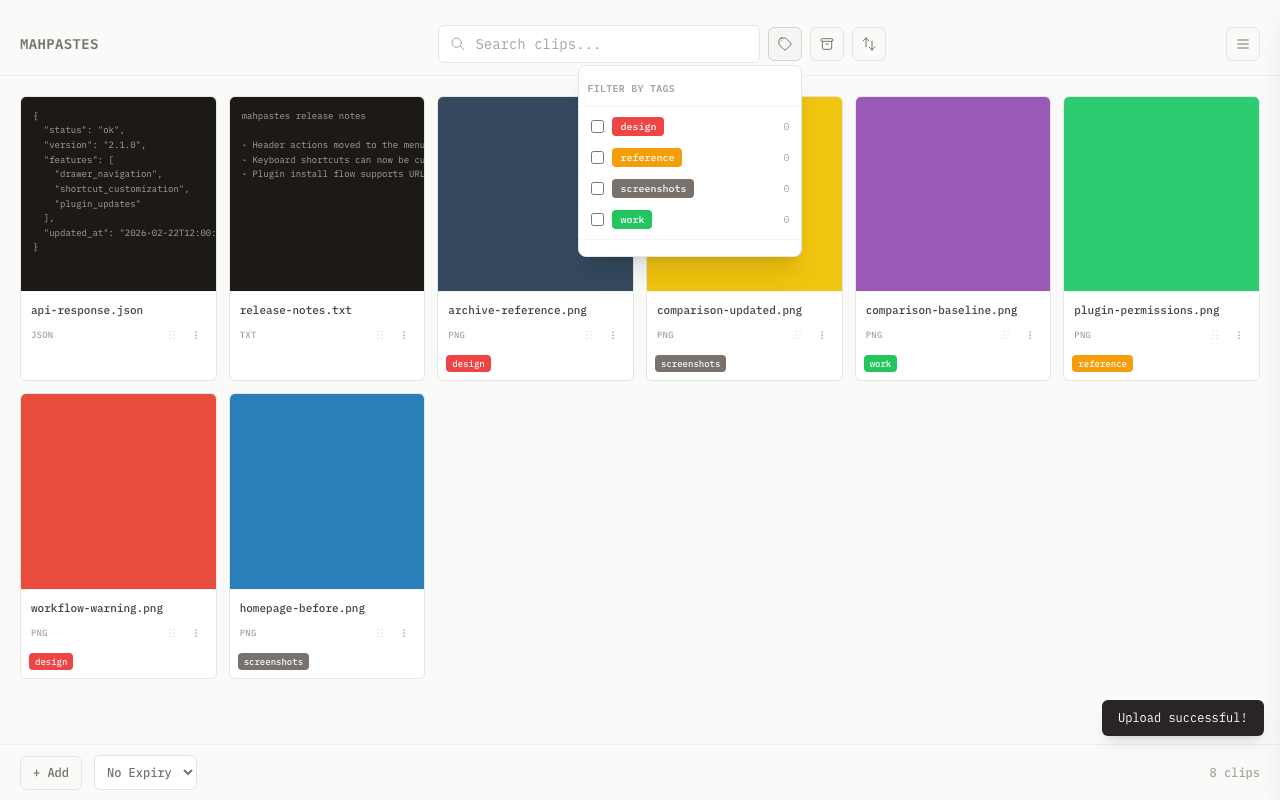
Use the tag filter button next to search:
- Click the tag icon button in the header
- Check one or more tags in the dropdown
- The gallery updates immediately
Filter behavior:
- Multiple selected tags use AND logic
- Active filters appear as chips under the header
- Click a chip's
xto remove just that filter - Use Clear all to reset all tag filters
Hidden Tags
Hide specific tags from the default gallery view.
Configure Hidden Tags
- Open the menu drawer
- Click Settings
- In Hidden Tags, enable tags you want hidden
How hidden tags work:
- Clips with hidden tags are excluded from default gallery results
- If you explicitly filter by a hidden tag, matching clips appear
- Hidden tags are marked with an eye-slash indicator in the filter dropdown
Subtags (Hierarchical Tags)
Tags support a hierarchy using / as a separator. A tag name like work/client1/projectABC creates a three-level tree: work is the parent, client1 is a child of work, and projectABC is a child of client1.
Creating Subtags
Create a subtag the same way as a regular tag -- just include / in the name:
- Open the Tags popover for a clip
- Type a path like
work/client1/projectABC - Press Enter or click Add
Intermediate tags are auto-created if they do not already exist. Creating work/client1/projectABC also creates work and work/client1 if they are missing. Intermediate tags inherit the color of the nearest existing ancestor tag (see Tag Colors).
Tag names cannot contain _api as an exact path segment (e.g., _api or work/_api are rejected). This segment is reserved for the Tag Serve JSON API. Substrings like my_api_stuff are fine.
Rename and Delete Behavior
- Cascading rename: Renaming a parent tag renames all descendant tags. Renaming
worktoofficechangeswork/client1tooffice/client1,work/client1/projectABCtooffice/client1/projectABC, and so on. - Deleting a parent does not delete children. If you delete
work, its children (work/client1,work/client1/projectABC) remain as-is. They become orphaned subtags at the top level of the hierarchy. - Subtag preservation: Subtags (tags with
/in their name) are never auto-deleted by the orphan cleanup. They persist until explicitly deleted, even when no clips reference them. Only flat tags (no/) are auto-deleted when orphaned. - Parent protection: A parent tag is not auto-deleted when its last clip is untagged if it still has child tags.
Tag Tree Exclusivity
A clip can only occupy one position in any given tag tree. When you assign a tag, any other tags from the same root tree are automatically removed:
- Assigning
work/client1to a clip that already hasworkremoveswork - Assigning
workto a clip that haswork/client1removeswork/client1 - Assigning
work/client2to a clip that haswork/client1removeswork/client1 - Tags from different trees are unaffected -- a clip can have both
work/client1andphotos/vacation
Ancestor tags are implied. A clip tagged work/client1 automatically appears when you filter by work, without needing to be explicitly tagged with work. See Hierarchical Filtering for details.
Tree exclusivity also applies to bulk tagging. When you bulk-add a tag to multiple clips, the same-tree removal runs for each clip individually.
Card Tag Pills
Tag pills on clip cards show the full path for subtags (names containing /). For example, a clip tagged work/client1/projectABC shows a pill labeled work/client1/projectABC. Top-level tags (no /) show just the tag name. Hovering any pill displays the full tag name as a tooltip.
Each card shows a maximum of 3 tag pills. When a clip has more than 3 tags, the remaining count appears as a +N indicator.
Clicking a tag pill adds that tag as a filter, which is equivalent to selecting it in the tag filter dropdown.
Hierarchical Filtering
When you filter by a parent tag, the gallery shows clips tagged with that tag and all of its descendants. Filtering by work returns clips tagged work, work/client1, work/client1/projectABC, and any other subtag under work.
Filter Dropdown
The tag filter dropdown displays tags in a tree structure with indentation to show hierarchy. Top-level tags appear at the root, and subtags are indented beneath their parents.
AND Logic Across Groups
AND logic works across tag groups as before. Selecting both work and screenshots returns clips that match both -- the clip must have at least one tag in the work subtree and the screenshots tag.
Folder Mode
Folder mode gives the gallery a folder-like navigation experience based on subtag hierarchy.
Activating Folder Mode
Click the folder toggle button next to the sort controls. The button uses a solid dark highlight (matching the archive toggle) when folder mode is active. The gallery shows:
- At root level (no tag filter): Folder cards for each top-level tag, plus only untagged clips (clips with no tags at all). Tagged clips are only accessible by navigating into their folder.
- Inside a folder: Folder cards for immediate child subtags, plus clips tagged directly with that folder's tag. Clips that only have a deeper subtag (e.g.,
work/client1) do not appear at the parent level (work) -- they belong in the subfolder.
Each folder card displays the tag's color, the short name (leaf segment), and a clip count. The count includes all clips tagged with that tag and all of its descendants, so you can see the total size of the subtree at a glance.
Navigating
- Click a folder card to navigate deeper into that subtag
- A breadcrumb trail appears in the active tags area showing the current path (home icon, then each segment separated by
/) - Click any breadcrumb segment's
xbutton to jump back to that segment's parent level - Click the home icon to return to the root level
Auto-Tagging on Upload
When you upload or paste a clip while inside a folder, the clip is automatically tagged with that folder's tag. This means adding content while "inside" a folder puts it in that folder -- no manual tagging needed. Uploading at the root level (no folder selected) does not auto-tag.
Drag-and-drop uploads follow the same rule. Dropping files into the app while navigated to a folder auto-tags those clips with the current folder's tag.
Tag Filter in Folder Mode
The tag filter dropdown behaves differently in folder mode:
- Checking a tag navigates to that tag's folder (replaces the current path) instead of adding an additional filter
- Unchecking a tag navigates up to its parent folder
- Entering folder mode with multiple unrelated filters normalizes to the last selected tag's folder path
Folder mode is a view-only toggle. It is not persisted across sessions -- closing the app resets it.
Hidden Tag Inheritance
Hiding a parent tag in settings hides all of its descendants from the default gallery view.
- The Settings > Hidden Tags panel shows top-level tags and orphaned subtags (those whose parent was deleted). Toggling a top-level tag hides the entire subtree.
- Subtags of a hidden parent still appear in the filter dropdown (dimmed to indicate they are hidden). This lets you filter by them when needed.
- Filtering by a subtag of a hidden parent reveals the clips. The hidden ancestor is excluded from the hidden list for the scope of that filter, so matching clips appear normally.
Tag Colors
Tag colors are assigned automatically from a rotating palette when tags are created. Subtags inherit their color from the nearest existing ancestor tag. If no ancestor exists (for example, when you create work/client1 and work does not exist yet), work gets a color from the palette and work/client1 inherits that color.
Current Limitations
There is no standalone tag-management screen for rename/recolor/delete actions.
Today, tag management is done through assignment popovers:
- Assign/unassign tags on clip cards or bulk selection
- Create new tags from the same popover
- Unused flat tags are removed automatically once no clips reference them (subtags and parents with children are preserved)
Related
- Bulk Actions -- apply tags to multiple clips at once
- Clipboard Management -- tag clips via the context menu
- Tag Serve -- serve clips in a tag over HTTP
- REST API -- manage tags and hidden tags via the API