Timeline View
The timeline view shows creation and update activity over time as a bar chart. It is available on every entity list page -- Resources, Notes, Groups, Tags, Categories, and Queries -- and replaces the default list with a visual breakdown of when entities were created or last modified.
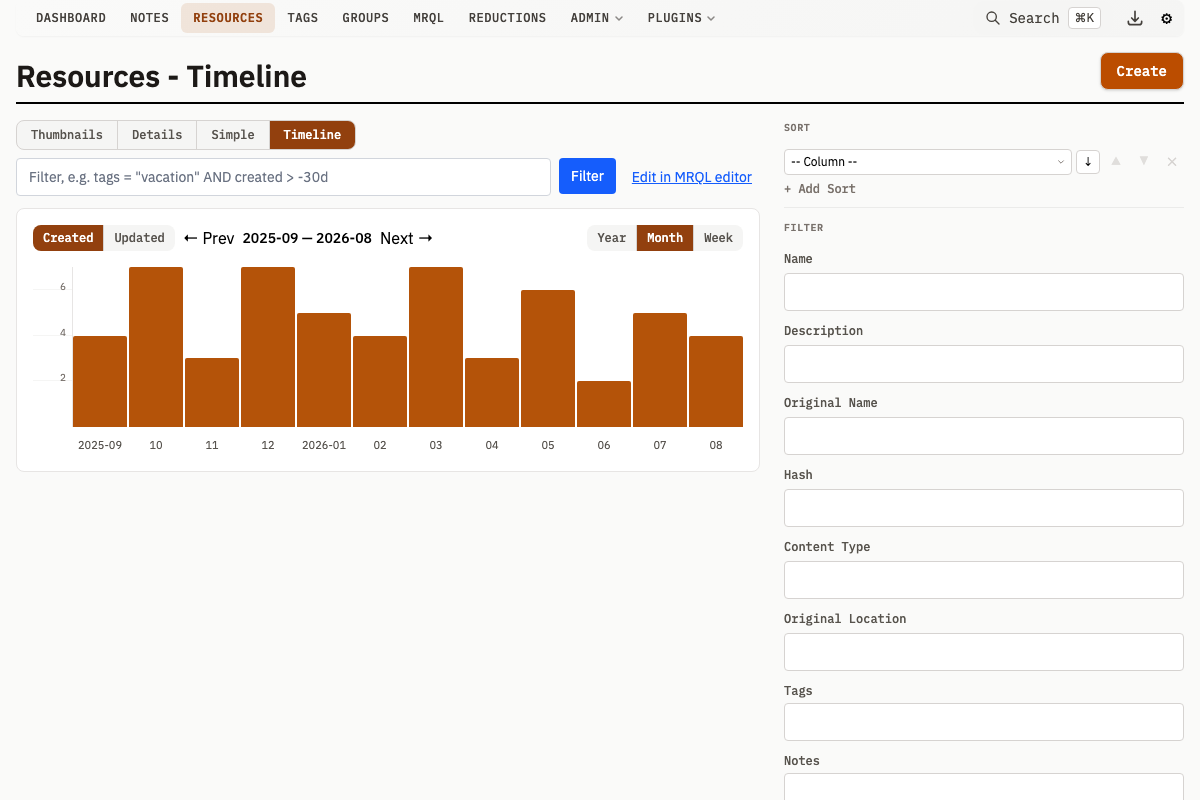
Accessing the Timeline
Each entity list page includes a view switcher in the navigation area. Click Timeline (or navigate directly to the /timeline path variant) to switch from the default list view to the timeline chart.
| Entity | Timeline URL |
|---|---|
| Resources | /resources/timeline |
| Notes | /notes/timeline |
| Groups | /groups/timeline |
| Tags | /tags/timeline |
| Categories | /categories/timeline |
| Queries | /queries/timeline |
How It Works
The chart displays a series of vertical bars. Each bar represents a time bucket and shows one activity type at a time. An Activity type toggle above the chart selects which timestamp is charted:
- Created -- entities whose
CreatedAtfalls within the bucket - Updated -- entities whose
UpdatedAtfalls within the bucket
Switching the toggle redraws the chart against the other timestamp. The two are never drawn side by side.
Bar heights scale proportionally to the maximum count in the visible window. Empty buckets show a thin placeholder line.
Granularity Modes
Three granularity levels control how time is divided into buckets:
| Mode | Label format | Bucket size |
|---|---|---|
| Yearly (Y) | 2024 | One calendar year |
| Monthly (M) | 2024-06 | One calendar month |
| Weekly (W) | Jun 02 | One week (labeled by its start date) |
Monthly is the default. Switching granularity resets the anchor to today.
Navigation
- Left arrow (
<) -- shifts the time window backward. The first bucket's start date becomes the new anchor, so you see the preceding period. - Right arrow (
>) -- shifts the time window forward. Disabled when the rightmost bucket already contains today. - HasMore indicators -- the API response includes
hasMore.leftandhasMore.rightflags so the UI knows whether navigation arrows should be active.
The number of columns adapts to the viewport width (between 5 and 30 buckets). Resizing the browser window recalculates automatically.
Clicking Bars
Clicking a bar opens a preview panel below the chart:
- The bar highlights as selected
- A heading shows the bucket label, bar type (Created or Updated), and total count
- Up to 20 entities from that time range load below the heading
- A "Show all" link (showing the bucket's total count) navigates to the standard list view filtered to that date range
Clicking the same bar again closes the preview. Clicking a different bar switches to it.
Sidebar Filters
All entity-specific sidebar filters remain active on the timeline view. Any filter you apply (tags, categories, name search, date ranges, etc.) restricts which entities are counted in the chart. This makes it possible to see, for example, how resources tagged "photography" were created over time.
The timeline API passes all query parameters through to the underlying entity search, so the same filters that work on the list view work identically on the timeline.
API Endpoints
Each entity type has a dedicated timeline endpoint:
GET /v1/resources/timeline
GET /v1/notes/timeline
GET /v1/groups/timeline
GET /v1/tags/timeline
GET /v1/categories/timeline
GET /v1/queries/timeline
Timeline Parameters
| Parameter | Type | Default | Description |
|---|---|---|---|
granularity | string | monthly | Bucket size: yearly, monthly, or weekly |
anchor | string | today | End date for the window (YYYY-MM-DD format) |
columns | int | 15 | Number of buckets to return. A value outside 1 to 60 is ignored and the default is used |
All standard entity filter parameters are also accepted and restrict which entities are counted.
Example Request
curl "http://localhost:8181/v1/resources/timeline?granularity=monthly&columns=12"
Example Response
{
  "buckets": [
    {
      "label": "2025-04",
      "start": "2025-04-01T00:00:00Z",
      "end": "2025-05-01T00:00:00Z",
      "created": 42,
      "updated": 15
    },
    {
      "label": "2025-05",
      "start": "2025-05-01T00:00:00Z",
      "end": "2025-06-01T00:00:00Z",
      "created": 7,
      "updated": 3
    }
  ],
  "hasMore": {
    "left": true,
    "right": false
  }
}
CLI Usage
The mr CLI includes a timeline subcommand for each entity type. It renders an ASCII bar chart in the terminal.
mr resources timeline
mr notes timeline
mr groups timeline
mr tags timeline
mr categories timeline
mr queries timeline
Timeline Flags
| Flag | Default | Description |
|---|---|---|
--granularity | monthly | Bucket granularity: yearly, monthly, or weekly |
--anchor | today | Anchor date (YYYY-MM-DD) |
--columns | 15 | Number of buckets. A value outside 1 to 60 is ignored and the default is used |
--json | Output raw JSON instead of the ASCII chart |
--json is a global mr flag available on every command, not specific to timeline. All entity-specific filter flags are also available. For example, mr resources timeline --name="sunset" restricts the chart to resources matching "sunset".
Examples
# Monthly resource activity (default)
mr resources timeline

# Weekly note activity for the last 20 weeks
mr notes timeline --granularity=weekly --columns=20

# Yearly group activity anchored to 2020
mr groups timeline --granularity=yearly --anchor=2020-01-01

# Raw JSON output for scripting
mr tags timeline --json

# Filtered: only resources with a specific tag
mr resources timeline --tags=5
ASCII Chart Output
2025-01  ████████████████████ 42
         ▓▓▓▓▓▓▓ 15
2025-02  ██████████ 21
         ▓▓▓▓ 8
2025-03  ███ 7
         ▓▓ 3

█ Created  ▓ Updated
<< more
The chart scales bars to the terminal width. A legend at the bottom distinguishes created from updated counts. << more and more >> indicators show when additional data exists beyond the visible window.