Note Sharing
Individual notes can be published to a separate, public-facing server. Shared notes are accessible via cryptographically secure URLs without authentication, letting you share content publicly while keeping the main instance private.
How It Works
When you share a note:
- A 128-bit cryptographically random token is generated
- The token is stored with the note in your database
- A share URL is created:
/s/{token} - The shared note is accessible on the share server (separate port)
The share URL is unguessable. Knowing one token does not help discover others. Tokens persist until you explicitly unshare the note.
What Gets Shared
When a note is shared, visitors can see:
- Note content - The note's name, description, and text content
- Block content - Every block type renders on the share page. Text, headings, dividers, todos, galleries, and calendars show their own content. A references block publishes the name, description, and category of each group it references. A table block backed by a saved query executes that query on the share server and renders the result rows (see Interactive Blocks).
- Embedded resources - Images and files attached to the note
What remains private:
- Tags and categories
- The note's own group memberships (a references block, however, publishes the name, description, and category of the specific groups it references)
- Metadata, unless the note's type opts into applying templates to shares: a
[meta]shortcode in a shared Custom Header renders the real metadata value (read-only) onto the public page - Other notes and resources
Enabling Note Sharing
Note sharing requires configuring the share server. See Public Sharing Deployment for detailed setup instructions.
Share Server Configuration
| Flag | Env Variable | Default | Description |
|---|---|---|---|
-share-port | SHARE_PORT | (disabled) | Port for the share server |
-share-bind-address | SHARE_BIND_ADDRESS | 0.0.0.0 | Bind address for the share server |
-share-public-url | SHARE_PUBLIC_URL | (unset) | Externally-routable base URL for shared notes (e.g. https://share.example.com), used to build absolute share links. When unset, the UI shows only the relative /s/<token> path. Runtime-editable. |
Start the share server by specifying a port:
./mahresources \
  -db-type=SQLITE \
  -db-dsn=./data/mahresources.db \
  -file-save-path=./data/files \
  -bind-address=:8181 \
  -share-port=8383
Or in .env:
SHARE_PORT=8383
SHARE_BIND_ADDRESS=0.0.0.0
Sharing a Note
From the Note Display Page
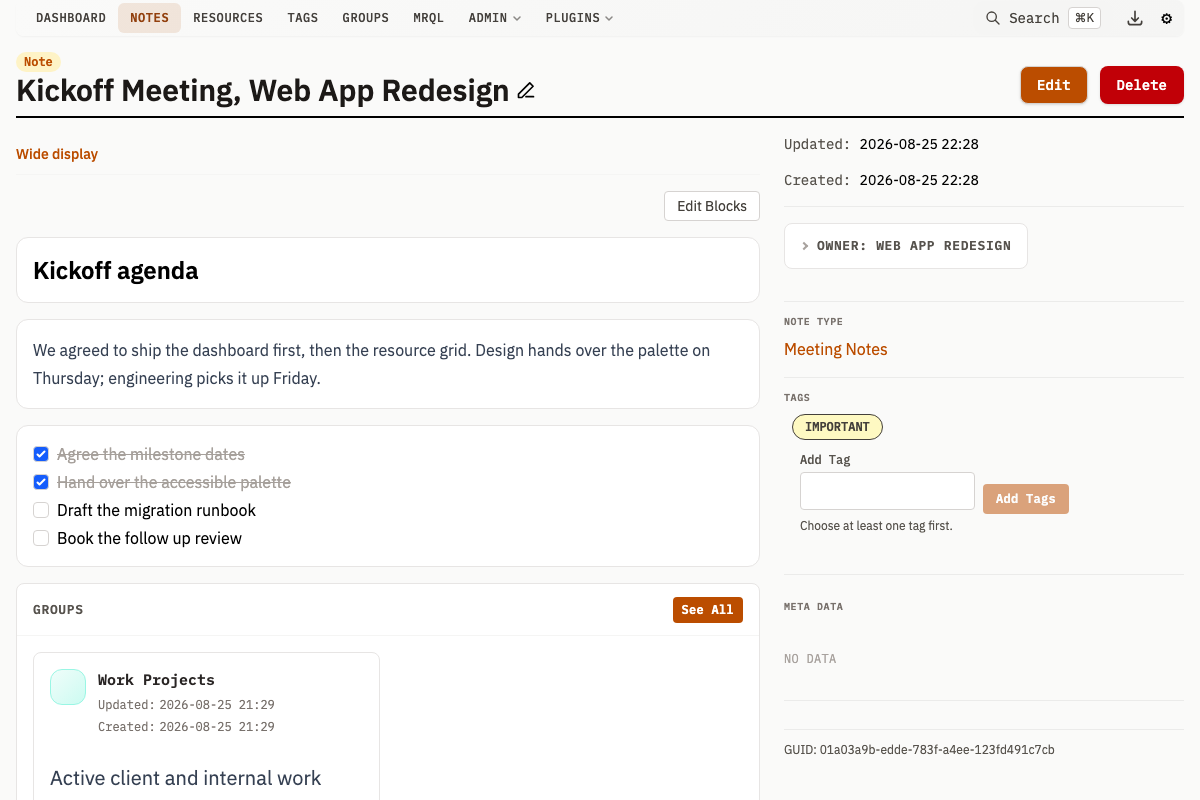
- Navigate to the note you want to share
- In the sidebar, find the Sharing section
- Click Share Note
When shared:
- A "Shared" badge appears
- An Unshare button becomes available
If SHARE_PUBLIC_URL is configured, the absolute share URL is copied to your clipboard automatically and displayed with a copy button. If it is unset, no clipboard copy happens: a warning is shown and only the relative /s/<token> path is displayed, which you must append to your server's public URL manually.
Using the API
Share a note programmatically:
# Share a note
curl -X POST "http://localhost:8181/v1/note/share?noteId=123"

# Response:
# { "shareToken": "a1b2c3d4...", "shareUrl": "/s/a1b2c3d4..." }
Unshare a note:
curl -X DELETE "http://localhost:8181/v1/note/share?noteId=123"
Accessing Shared Notes
Shared notes are accessed on the share server:
http://your-share-server:8383/s/{token}
Share Server Routes
| Method | Path | Description |
|---|---|---|
GET | /s/{token} | View the shared Note |
POST | /s/{token}/block/{blockId}/state | Update block state (todo checkboxes only; other block types are rejected with HTTP 403) |
GET | /s/{token}/block/{blockId}/calendar/events | Get calendar events for a calendar block |
GET | /s/{token}/resource/{hash} | Access a Resource file by its hash |
The share server runs on a separate port and serves only these routes plus the static assets under /public/ that the shared page needs. Resource access is validated -- the server checks that the requested Resource belongs to the shared Note (either through direct associations or gallery block references).
Note Type Templates on Shared Pages
By default a public share page ignores the note type's custom templates -- it renders only the note's own name, description, and blocks. A note type can opt in to applying its presentation to shared pages with the Apply templates to public share pages checkbox on the note type form (ApplyTemplatesToShares, off by default, so existing shares never change appearance without an explicit choice).
When enabled, two slots apply to the /s/<token> page for notes of that type:
- Custom Header - rendered above the note content.
- Custom CSS - injected as an inline
<style>block.
The other slots (Custom Sidebar, Custom Summary, Custom Avatar, Custom MRQL Result) do not apply: a share page has no sidebar and no card/list context.
Templates run in a restricted mode appropriate to an anonymous, unauthenticated surface:
- No queries.
[mrql]shortcodes do not execute -- running queries on the public surface would leak data beyond the shared note and add unauthenticated database load. They render as an HTML comment, not as results and not as leaked shortcode text. - No plugins. Plugin shortcodes (
[plugin:...]) do not run -- plugin code executes against the unscoped database. They also render as an HTML comment. - Read-only metadata.
[meta]renders in display mode only: the share page never shows an edit control that would POST back to the primary server. Note that the metadata value itself is still published onto the public page as read-only text, so a shared Custom Header that references a[meta]field exposes that field's value to anyone with the URL. - Whole-page reload. A
[reload]button renders normally, but a share page renders its slots without the deferred tokens that make a single block or slot re-renderable, so there is nothing smaller for the button to refresh -- activating it reloads the whole page.
[property], [conditional], [each], [link], and [partial] work normally -- they are pure functions over the already-shared note.
Interactive Blocks on Shared Notes
Two block types respond to visitor interaction on shared notes: todos, which visitors can toggle, and calendars, which visitors can browse (view-only).
Table Blocks and Saved Queries
A table block backed by a saved query runs that query on the share server for every visitor, unauthenticated, and renders the result rows. This is not gated by the note type's Apply templates to public share pages setting, so it happens on any shared note that contains such a block. Only share notes whose backing queries are safe to expose publicly. Manual (non-query) table blocks simply render their stored cells.
Shared Todos
Visitors can check and uncheck todo items on shared notes. Changes are visible to all viewers because state is global. The shared todos component performs optimistic updates with rollback on server error, syncing state to POST /s/{token}/block/{blockId}/state.
Adding, removing, or editing todo items is not allowed on shared views -- only toggling the checked state.
Shared Calendars
Calendar blocks on shared notes are view-only. Visitors can browse month and agenda views and see events sourced from the block's ICS feed, but they cannot create, edit, or delete events. The share server rejects state writes for every block type except todos (HTTP 403, BH-031), so calendar changes never persist. GET /s/{token}/block/{blockId}/calendar/events serves the events for display only.
Shared Block Constraints
| Capability | Todos | Calendar |
|---|---|---|
| View content | Yes | Yes |
| Toggle/check items | Yes | -- |
| Browse month/agenda views | -- | Yes |
| View ICS-sourced events | -- | Yes |
| Create custom events | -- | No |
| Edit/delete custom events | -- | No |
| Add/remove items | No | -- |
| Edit block content | No | No |
Finding Shared Notes
Filter your notes list to show only shared notes:
- Go to Notes in the navigation menu
- In the filter panel, check Shared Only
- Click Search
This shows all notes that currently have a share token.
Auditing Shares
/admin/shares lists every note currently holding a share token, with four columns: Name, Public URL, Created and Revoke. Rows are ordered newest share first; a share minted before the creation timestamp was recorded shows (unknown) there rather than a back-filled date. The Public URL column renders an absolute link when -share-public-url is set, and the relative /s/<token> path otherwise.
Select several rows and revoke them in one request. The dashboard and its bulk revocation both require the editor role under -auth, unlike per-note sharing.
Unsharing Notes
To stop sharing a note:
- Navigate to the shared note
- In the sidebar Sharing section, click Unshare
When unshared:
- The share token is deleted
- The share URL immediately stops working
- If you share again later, a new token is generated
Security Considerations
Token Security
- Tokens are 128-bit cryptographically random values
- Generated using Go's
crypto/randpackage - Represented as 32-character hex strings
- Cannot be predicted or enumerated
Network Architecture
For public sharing:
- Keep your main Mahresources instance on a private network
- Expose only the share server port through a reverse proxy
- Use HTTPS for the public share server
- Add rate limiting on the share server
See Public Sharing Deployment for detailed security guidance.
Data Exposure
Before sharing a note, review its content carefully:
- The note's full text will be publicly visible
- Any embedded resources (images, files) will be accessible
- Block content (including todo items) will be visible
API Reference
Share Note
POST /v1/note/share?noteId={id}
Response:
{
  "shareToken": "a1b2c3d4e5f6...",
  "shareUrl": "/s/a1b2c3d4e5f6..."
}
If the note is already shared, returns the existing token.
Unshare Note
DELETE /v1/note/share?noteId={id}
Response:
{
  "success": true
}
Bulk Unshare
POST /v1/admin/shares/bulk-revoke
Form-encoded, with the ids field repeated once per note. Non-numeric and zero values are skipped. Requires the editor role under -auth.
Response:
{
  "success": true,
  "revoked": 2,
  "attempts": 2
}
Without Accept: application/json the request redirects to /admin/shares.
List Shared Notes
GET /v1/notes?Shared=1
Returns all notes that have a share token.