Search
Five ways to find content: global search for quick lookups, list view filters for detailed queries, full-text search for content matching, MRQL for structured queries, and saved Queries for raw SQL.
Saved list searches
On any filterable list, apply your filters and choose Saved searches → Save current search above the results. Enter a name and save. Unsubmitted filter edits are not included.
Each saved search remembers filters, sort order, and layout. Searches are available across layouts of the same list: a search saved in Resources' details view also appears in its cards, contact-sheet, and timeline views. Opening it restores the saved layout and starts on page one. Results reflect current data; relative MRQL dates such as -7d remain relative.
Timeline searches also remember Created/Updated mode, week/month/year grouping, and the date anchor. The number of columns adapts to your screen; chart selections and preview panels are not saved.
The menu offers Rename, Replace with current search, and Delete for each entry. Replacement and deletion ask for confirmation. Duplicate names are allowed and do not overwrite existing searches.
Saved searches are personal and follow your account across browsers. With accounts disabled, they belong to the shared root account. They are separate from saved SQL Queries and saved MRQL queries, and do not change your access to list results.
Global Search
Open with Cmd+K (macOS) or Ctrl+K (Windows/Linux), or click the Search button in the header.
How It Works
- Type at least 2 characters
- Results appear as a flat list ranked by relevance, each with a type badge
- Use arrow keys to navigate, Enter to open, Escape to close
What Gets Searched
| Entity Type | Searched Fields |
|---|---|
| Resources | Name, Description, OriginalName |
| Notes | Name, Description |
| Groups | Name, Description |
| Tags | Name, Description |
| Categories | Name, Description |
| Resource Categories | Name, Description |
| Queries | Name, Description |
| Saved MRQL Queries | Name, Description |
| Note Types | Name, Description |
| Relation Types | Name, Description |
Relevance Scoring
When full-text search is unavailable, results are ranked by LIKE-based scoring:
| Condition | Score |
|---|---|
| Exact name match | 100 |
| Exact match on an extra searchable field (e.g. Resource original filename) | 90 |
| Name starts with search term | 80 |
| Name contains search term | 60 |
| Extra searchable field contains search term | 55 |
| Description contains search term | 40 |
| Other match | 20 |
The extra-field tiers apply only where an entity has additional searchable columns beyond name and description. Currently that is the Resource original filename.
The tiers are tested in the order name-exact, name-prefix, name-contains, extra fields, description, and the first match wins. Because that is not the same as descending score order, an extra-field match scores only when the name does not match at all: a Resource whose name merely contains the term scores 60 even when its original filename is an exact match.
Caching
- Server-side LRU cache with 60-second TTL
- Default result limit: 20 (server max: 50). The frontend requests 15 by default.
- Cache invalidates on entity create, update, or delete
- Frontend performs additional client-side caching (30-second threshold)
List View Filters
Each entity list page has filtering controls in the sidebar.
Common Filters
| Filter | Description |
|---|---|
| Name | Text search in name field |
| Description | Text search in description |
| Tags | Filter by assigned Tags (AND logic) |
| Owner | Filter by owning Group |
| Created Before/After | Date range filters |
Resource-Specific Filters
| Filter | Description |
|---|---|
| Content Type | Filter by MIME type |
| Original Name | Search original filename |
| Original Location | Search source URL |
| Hash | Find by content hash |
| Notes | Filter by associated Notes |
| Include subgroups | Widens the Owner filter to that Group's whole subtree; it does nothing on its own |
| Resource Category | Filter by Resource Category, and reveal that category's schema-driven meta fields |
| Min/Max Width | Image dimension filters |
| Min/Max Height | Image dimension filters |
| Show With Similar | Only images with perceptual hash matches |
| Only Untagged | Only Resources carrying no Tags |
ShowWithoutOwner=true restricts results to Resources with no owner. There is no control for it in the sidebar, so it is available as a URL parameter only.
MetaQuery Filters
Filter by JSON metadata fields using key:value or key:OPERATOR:value syntax.
Operators
| Code | Meaning |
|---|---|
LI | LIKE (default when no operator specified) |
EQ | Equals |
NE | Not equals |
NL | Not like |
GT | Greater than |
GE | Greater than or equal |
LT | Less than |
LE | Less than or equal |
Value Type Detection
| Input | Parsed As |
|---|---|
true / false | Boolean |
null | Null |
"quoted text" | Exact string |
42, 3.14 | Number |
| anything else | String (for LIKE matching) |
Examples
MetaQuery=author:Jane
MetaQuery=priority:EQ:high
MetaQuery=score:GT:80
MetaQuery=status:NE:archived
MetaQuery=url:EQ:https://example.com
Values may contain colons. The parser splits on the first colon only when the middle segment is a recognized operator; otherwise the entire remainder is treated as the value with LI as the default operator.
HAS_KEYS is not a valid URL MetaQuery operator. It exists internally as a JSON query type but is not in the recognized operator set, so key:HAS_KEYS:value will be treated as a literal value string rather than a key-existence check.
Group MetaQuery supports parent.key and child.key prefixes to search parent or child Group metadata.
Popular Tags Quick Filter
The top of filter sections shows the 20 most-used Tags for the current query. Click a Tag to toggle it as a filter.
Applying Filters
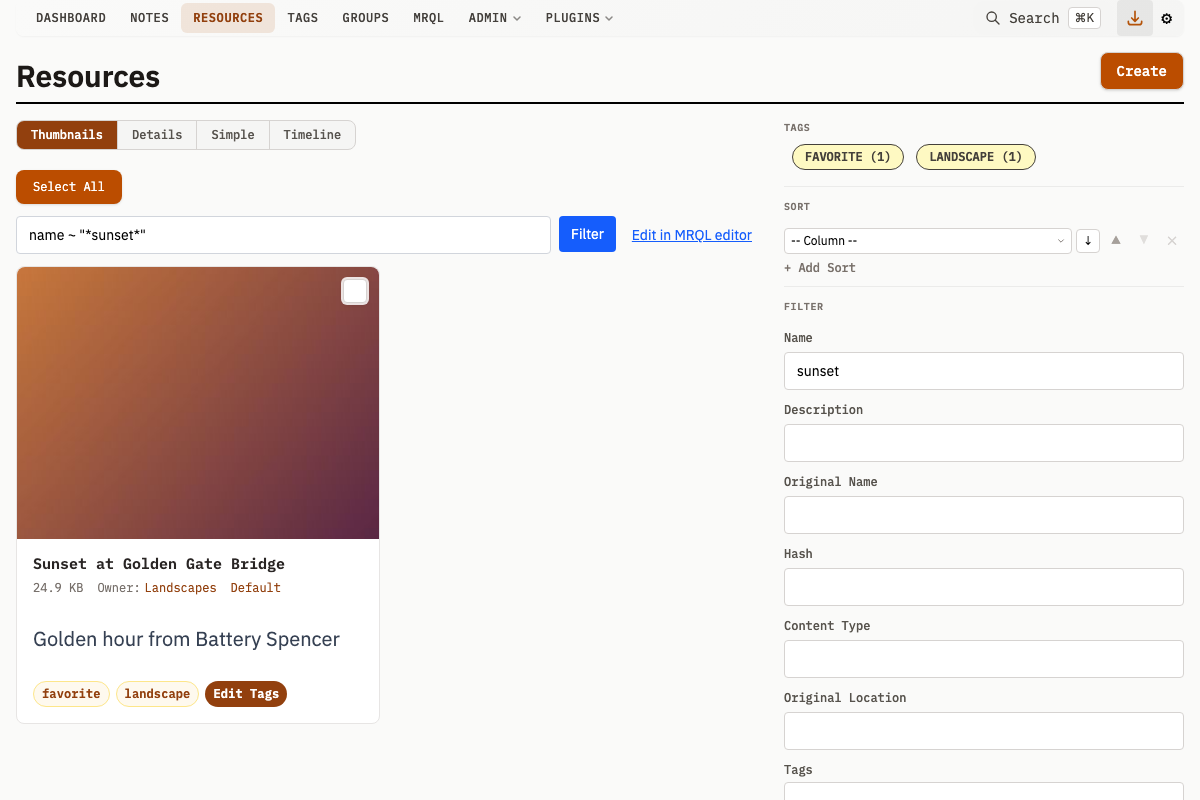
- Fill in desired filter fields
- Click Search
- The URL updates to reflect your filters (bookmarkable and shareable)
Sorting
Sort Syntax
Sort columns use space-separated direction:
SortBy=name desc
SortBy=created_at asc
Default sort for all entities: created_at desc.
Sort by Metadata
Sort by JSON metadata values using the meta->>'key' syntax:
SortBy=meta->>'priority' desc
->>'key' is PostgreSQL jsonb syntax. On SQLite it is translated internally to json_extract(meta, '$.key'), so the same SortBy string works on both database engines.
The metadata key may contain only lowercase letters and underscores. A key with digits, uppercase letters or hyphens fails validation, and the sort term is then dropped silently rather than reported: meta->>'priority2', meta->>'Priority' and meta->>'due-date' are all ignored.
Multi-Field Sorting
Pass multiple SortBy parameters. The first is primary; others break ties:
GET /v1/resources?SortBy=content_type asc&SortBy=created_at desc
Full-Text Search
Full-text search indexes all searchable entity types: Resource names, descriptions, and original names; Note names and descriptions; Group names and descriptions; and Tag, Category, Query, Saved MRQL Query, Relation Type, Note Type, and Resource Category names and descriptions.
Database Engines
| Database | Engine | Details |
|---|---|---|
| SQLite | FTS5 | Requires fts5 build tag |
| PostgreSQL | tsvector | Uses ts_rank for relevance |
Search Modes
| Syntax | Mode | Behavior |
|---|---|---|
word | Prefix (default for terms with 3+ characters) | Matches words starting with the term |
word* | Explicit prefix | Matches words starting with the term |
~word | Fuzzy | Trigram matching in PostgreSQL, LIKE fallback in SQLite |
~2word | Fuzzy with an explicit edit distance | The digit sets the distance, clamped to the range 1 to 3. A bare ~word uses 1 |
=word or "word" | Exact | Matches the exact term only |
Both engines fall back to LIKE-based search when full-text search is disabled.
Disabling Full-Text Search
./mahresources -skip-fts
MRQL
MRQL is a query language of its own, covering Resources, Notes and Groups with filters, traversals, aggregation and grouping. Two surfaces expose it:
- The MRQL entry in the navigation bar opens
/mrql, a full editor with results, saved queries and export. - Every Resource, Note and Group list page carries an MRQL filter bar above the results. A query entered there is preserved when you refine the sidebar filters, so the two combine.
See MRQL for the language, and MRQL Reference for the full field list.
Saved Queries
Saved Queries execute raw SQL through the query runner. For database-level write protection, configure DB_READONLY_DSN as a truly read-only connection.
Creating a Query
- Navigate to Queries and click Add
- Enter a Name (unique)
- Write SQL in the Query field
- Optionally add a Description and a Template for result display
- Click Save
Named Parameters
Queries use :param syntax for named parameters:
SELECT * FROM resources WHERE name LIKE :searchTerm
When running the Query, a form appears for each parameter.
Write PostgreSQL :: casts normally in saved queries:
SELECT meta::jsonb FROM resources WHERE id = :id
The query runner escapes casts automatically before named-parameter binding.
Query Examples
Find large Resources:
SELECT id, name, file_size
FROM resources
WHERE file_size > :minSize
ORDER BY file_size DESC
Count Resources by content type:
SELECT content_type, COUNT(*) as count
FROM resources
GROUP BY content_type
ORDER BY count DESC
Recent Notes with Tags:
SELECT n.id, n.name, GROUP_CONCAT(t.name) as tags
FROM notes n
LEFT JOIN note_tags nt ON n.id = nt.note_id
LEFT JOIN tags t ON nt.tag_id = t.id
WHERE n.created_at > :since
GROUP BY n.id
ORDER BY n.created_at DESC
Database Schema
Use GET /v1/query/schema to retrieve all table names and column names for writing Queries.
Query Security
Queries execute with full database read access. Only trusted users should create Queries. This is acceptable because Mahresources is designed for private network deployments.