Bulk Operations
Bulk operations let you modify multiple resources, notes, or groups at once: add/remove tags, update metadata, assign groups, or delete.
Selecting Items
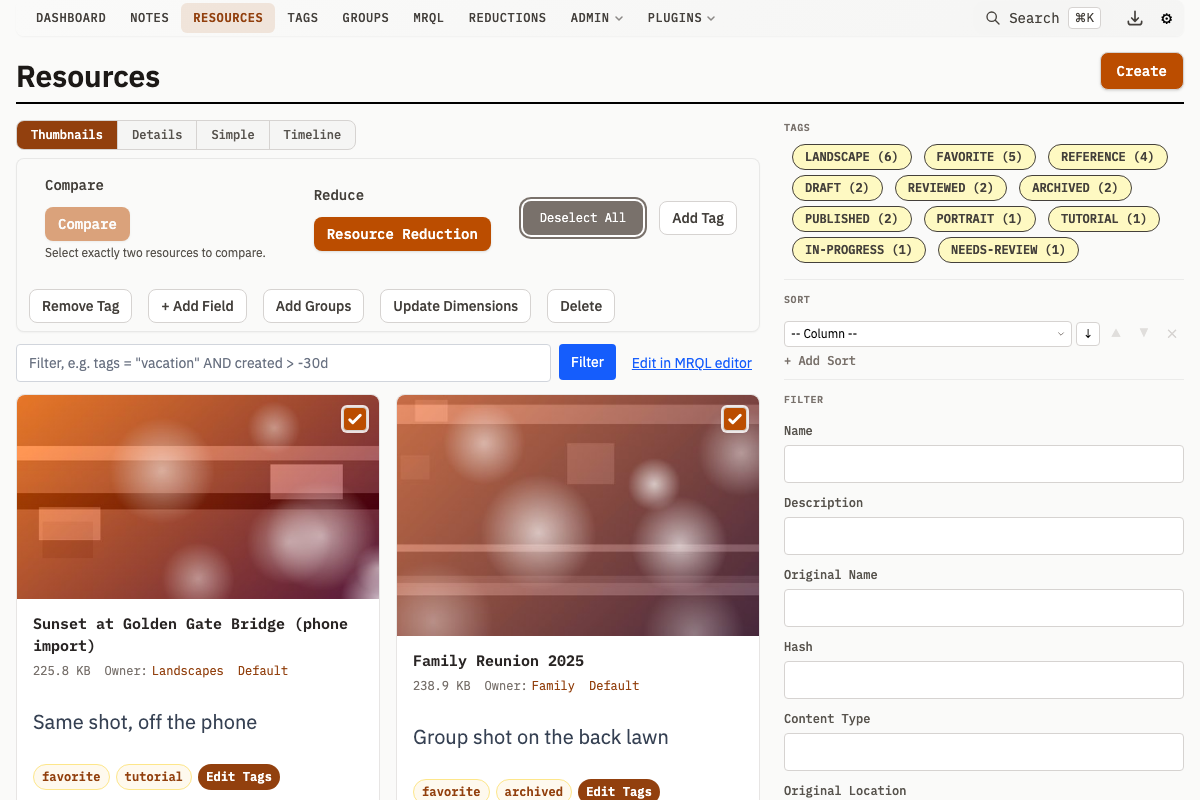
Click the checkbox next to any item in a list view to select it.
| Action | Method |
|---|---|
| Toggle selection | Click checkbox, or press Space or Enter |
| Range select | Shift+Click or Right-click |
| Select text range then toggle | Select text with mouse, press Space |
Range Selection
Select multiple consecutive items:
- Click the first item's checkbox
- Hold Shift and click the last item's checkbox
- All items between are selected
Alternatively, right-click any item to select from the last-clicked item to the right-clicked item.
Select All
Click the Select All button above the list to select all visible items on the current page.
Deselect All
Click Deselect All or clear individual checkboxes to deselect items.
The Bulk Editor
When you select one or more items, the bulk editor appears inline above the list. It shows all available operations simultaneously (Add Tag, Remove Tag, Add Metadata, etc.) along with Deselect and Select All buttons.
Available Operations by Entity Type
| Operation | Resources | Notes | Groups | Tags |
|---|---|---|---|---|
| Add Tags | Yes | Yes | Yes | - |
| Remove Tags | Yes | Yes | Yes | - |
| Replace Tags | Card editor + API | - | - | - |
| Add Metadata | Yes | Yes | Yes | - |
| Add Groups | Yes | Yes | - | - |
| Update Dimensions | Yes | - | - | - |
| Compare | Yes (2 only) | - | Yes (2 only) | - |
| Merge | Detail page or compare view | - | Detail page only | Yes |
| Resource Reduction | Yes | - | Yes | - |
| Export | - | - | Yes | - |
| Plugin actions | Yes | Yes | Yes | - |
| Delete | Yes | Yes | Yes | Yes |
Export sends the selected group IDs to /admin/export, where the export is configured and run; see Export & Import.
Resource Reduction hands the selection to a named workspace that groups repeated Resources into Clusters for review before anything is deleted. Selected Groups contribute their contents and their descendants rather than themselves; see Resource Reduction.
Plugin actions appear in the bulk editor for every enabled plugin action declared for that entity type; see Plugin Actions.
Adding Tags
- Select items in the list
- In the Add Tag form in the bulk editor, search for tags using autocomplete
- Click Add
Tags are added immediately. Existing tags on items are preserved. If a tag does not exist yet, type the name and click + to create it.
Removing Tags
- Select items in the list
- In the Remove Tag form, search for and select tags to remove
- Click Remove
Only the specified Tags are removed. Other Tags remain.
Replacing Tags
Replace all tags on a resource with a new set. In the UI, click Edit Tags on a resource card to open the inline tag editor, adjust the tag set, and submit -- this replaces the card's tags via POST /v1/resources/replaceTags. The same endpoint is callable directly. Replace Tags is not exposed in the multi-select bulk editor.
curl -X POST http://localhost:8181/v1/resources/replaceTags \
  -F "ID=1" -F "ID=2" \
  -F "EditedId=10" -F "EditedId=20"
All existing tags on the specified resources are removed and replaced with the given set.
Adding Metadata
- Select items in the list
- In the Add Metadata form, enter a key and value
- Add more key-value pairs if needed
- Click Add
New keys are added to items. Existing keys are overwritten with the new value. Other metadata keys are preserved.
Adding to Groups
- Select resources or notes in the list
- In the Add Groups form, search for and select target groups
- Click Add
Resources and notes are added as related to the selected groups (not owned). This operation is available for resources and notes.
Updating Dimensions
Select image resources and click Update Dimensions to re-read each file and update stored width/height values.
Comparing Resources
Compare two resources side-by-side:
- Select exactly 2 resources
- The Compare button becomes enabled. It is always visible; with any other number selected it stays disabled and a hint says why.
- Click Compare
- A comparison view opens
The comparison view shows metadata differences between the two Resources: size delta, whether they share the same hash, content type match, and dimension differences.
For image resources, four visual comparison modes are available: side-by-side, slider, onion skin, and toggle. For text-based resources, a unified or split diff view highlights line-level changes. Cross-resource version comparison is also supported.
A collapsed Merge panel is always present at the bottom of the compare view. Its controls are enabled only when the two resources are different (not two versions of the same resource) and both are at their current version; otherwise they are disabled and the panel states the reason. When it is available, select which resource wins, optionally keep the loser as an older version of the winner, then confirm. This is equivalent to the merge operation available on resource detail pages.
Comparing Groups
Compare two groups side-by-side:
- Select exactly 2 groups
- Click Compare, which becomes enabled at exactly two selections
- The group comparison page opens
The page reports same or different for the core fields (name, category, owner, URL, created and updated timestamps), and shows inline text diffs for the description and Meta JSON. Tags, owned groups, notes and resources, related groups, notes and resources, and forward and reverse relations are each split into left-only, shared and right-only lists; each section heading shows the number of items compared. A summary strip at the top reports how many sections differ and how many core fields differ.
Either side can be re-picked on the page itself: each has its own group picker, so you can walk through a set of groups without going back to the list.
Bulk Deletion
Delete multiple items at once:
- Select items to delete
- Click Delete Selected in the bulk editor
- Confirm the deletion in the popup
Bulk deletion removes database records. For Resources, files are backed up to the /deleted/ directory before removal. Files are only physically deleted if no other Resources or versions reference the same hash.
Merging Resources
Merge two resources from either of two places:
From the similar resources section on a resource detail page:
- The similar resources section shows visually similar images
- Click Merge Others To This
- Confirm the merge
From the compare view, reached by bulk-selecting exactly 2 resources and clicking Compare (see Comparing Resources):
- Open the Merge panel at the bottom of the compare view; its controls are enabled when both resources are at their current version
- Select which resource wins, optionally keep the loser as an older version of the winner
- Confirm the merge
Both paths post to /v1/resources/merge.
The merge operation:
- Keeps the winner resource
- Transfers metadata from merged resources
- Deletes the merged (loser) resources
Merging Tags
Combine duplicate tags into one:
- Select tags in the tag list
- Use the merge operation
- Select the winner tag
All entity associations from the loser tags transfer to the winner. The loser tags are deleted.
Merging Groups
Combine multiple groups into one:
- Navigate to the "winner" group
- In the sidebar, use the merge autocomplete
- Select groups to merge
- Click Merge
The merge operation:
- Moves all owned content to the winner
- Updates relations to point to the winner
- Deletes the merged groups
Limitations
- Operations apply only to items on the current page. For large sets, work in batches.
- Bulk operations cannot be undone. Restore from backups if needed.
- Partial failures are possible: some items may already be modified if an operation fails midway. Check results and retry.
- Deleting many resources may be slow because files must be removed from disk.
Keyboard Shortcuts Summary
| Shortcut | Action |
|---|---|
| Click checkbox | Toggle single selection |
| Shift + Click | Select range |
| Right-click | Select range (alternative) |
| Space or Enter | Toggle the focused item |
| Space (with text selected) | Toggle selected checkboxes |